Clients in the console
A client is an application that signs people in through your tenant: a web app, a single-page app, a phone app or a back-end service. Odudu will not sign anybody in through an application it does not know, so registering the client is the first thing you do for each one. This page covers registering one, telling Odudu where it may send the browser back, and what to do when a secret leaks. It needs the manage-clients capability; the menu entry is Clients under APPLICATIONS.
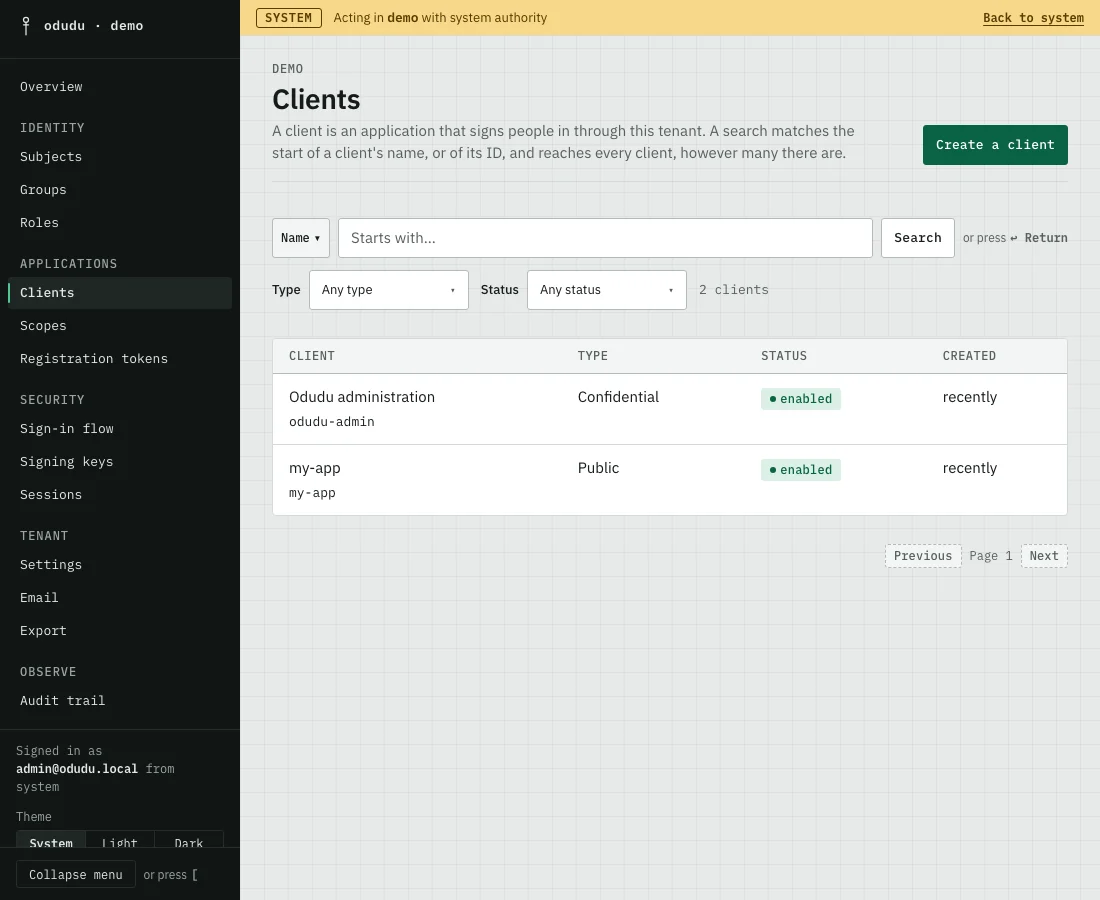
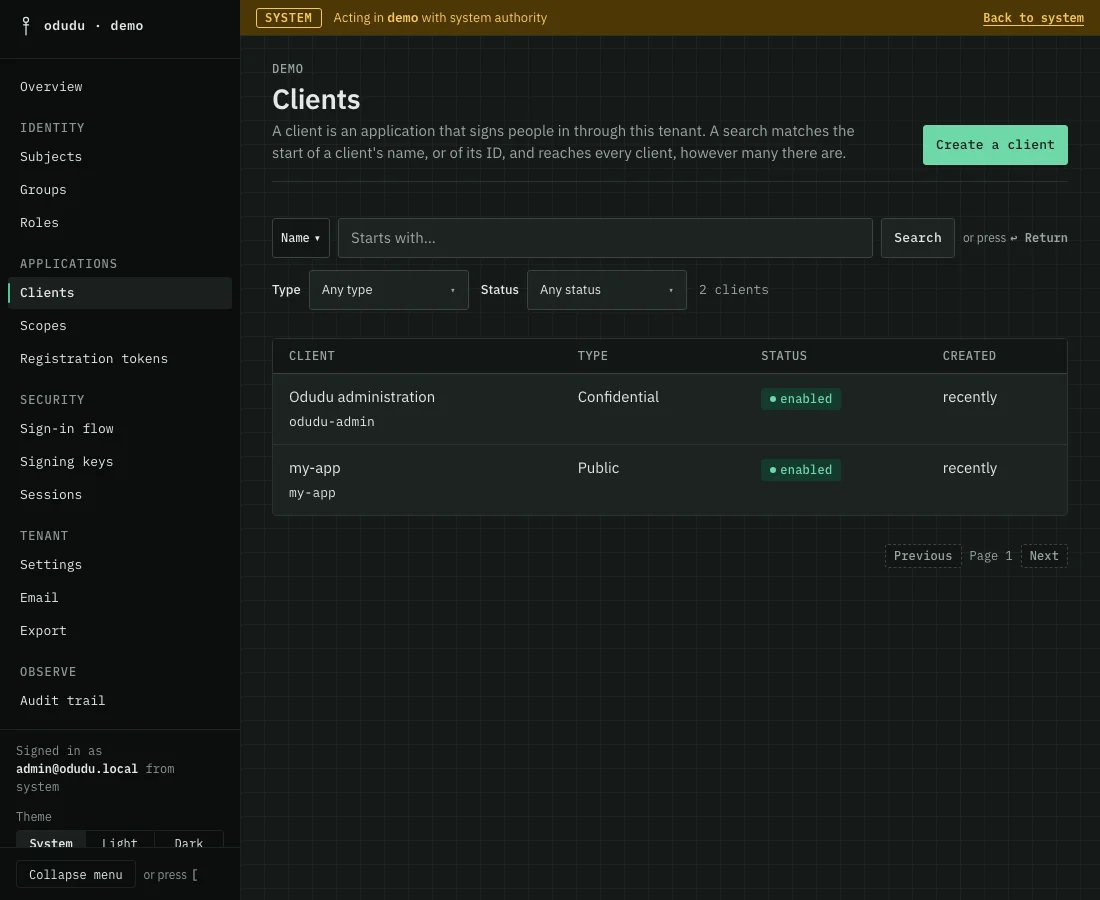
1. Register a client
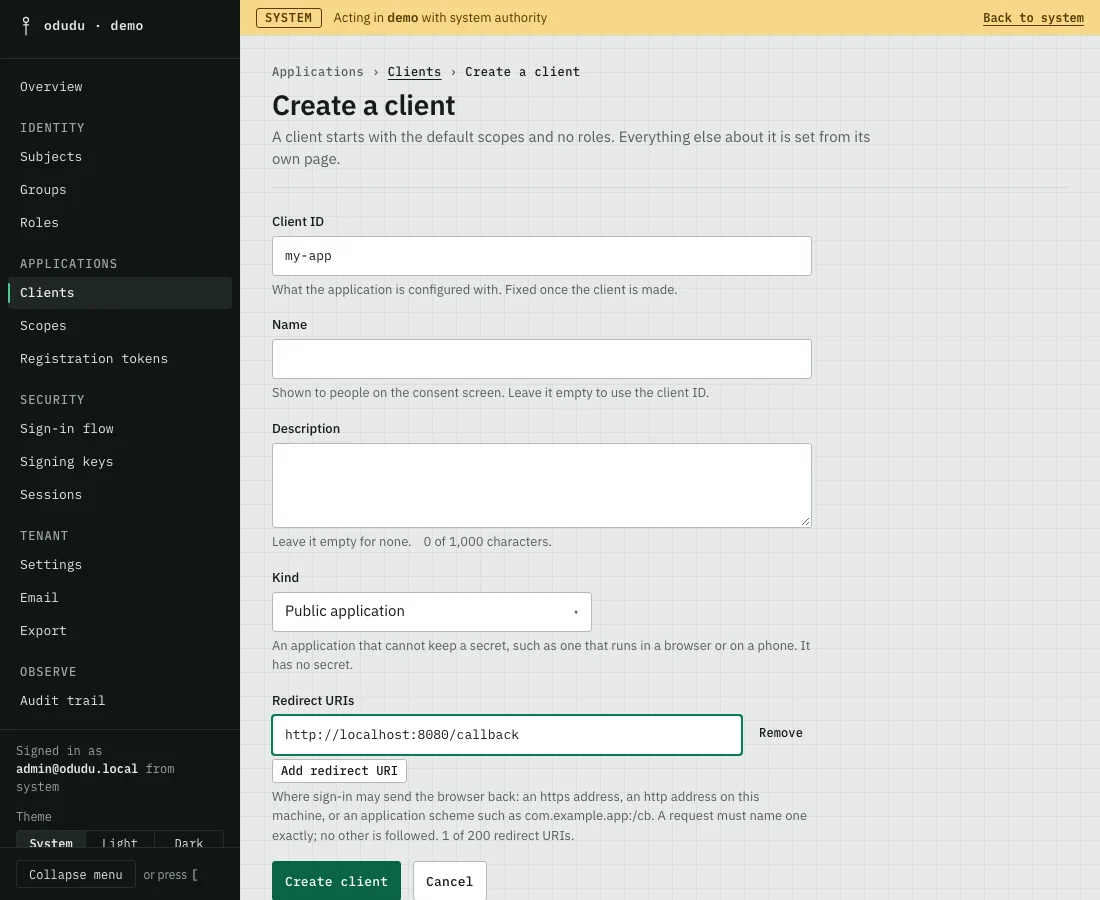
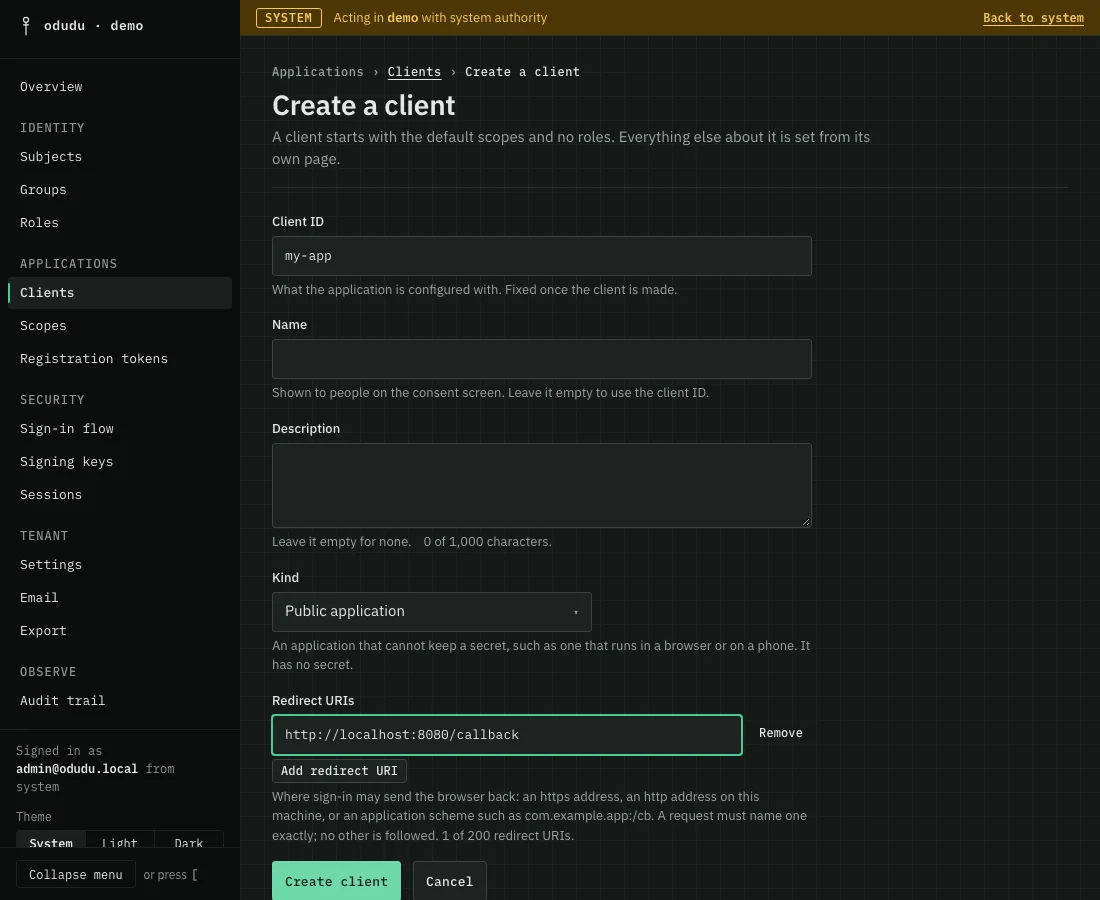
Choose Create a client and fill in the form.
- Enter a Client ID. It is what the application is configured with, and it is fixed once the client exists.
- Give it a Name, shown to people on the consent screen, and optionally a Description.
- Choose its Kind. A Web application has a server that can keep a secret. A Service is a back end that calls an API as itself, with no one signing in. A Public application runs in a browser or on a phone and cannot keep a secret. The kind cannot be changed later.
- For a web or public application, list its Redirect URIs. A service has none.
- Choose Create client.
A web application or a service is given a client secret, and the console shows it once. Copy it into the application's configuration before you leave the page. A public application has no secret.
2. Say where sign-in may send people back
Open the client and choose its Redirects & origins tab. A sign-in request must name one of the Redirect URIs exactly, and no other address is ever followed. That is what stops a stolen link from sending a person's authorization code elsewhere. Add or remove addresses here, and add a web origin if a browser application calls the client's endpoints from another origin.
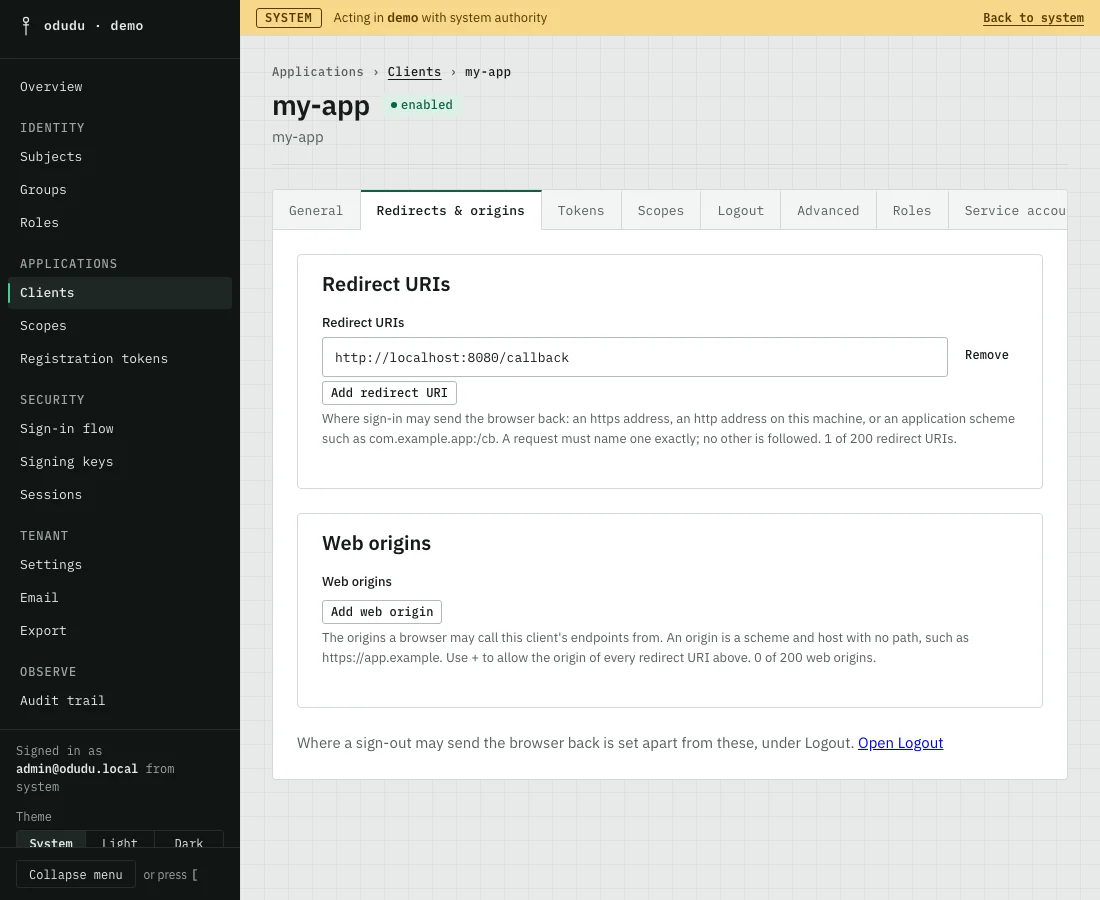
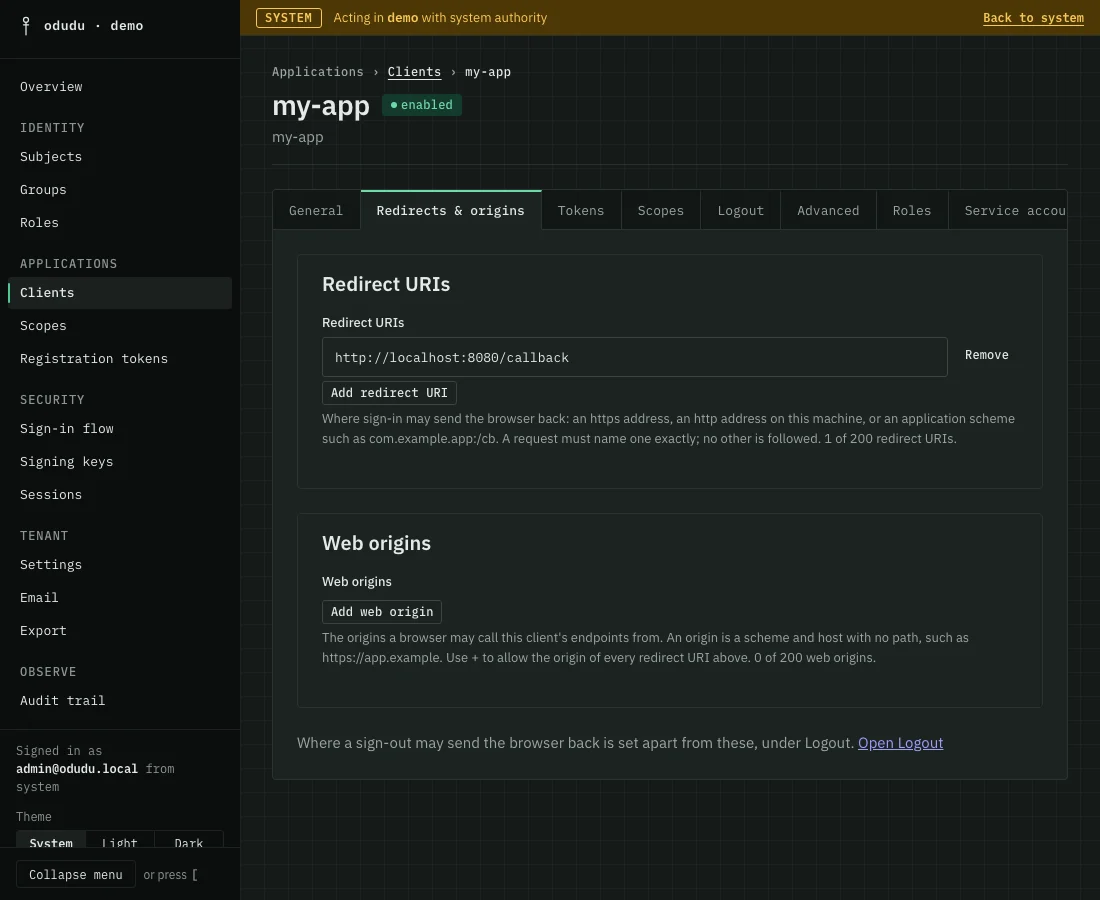
Where a sign-out may send the browser is set on the Logout tab, as Post-logout redirect URIs.
3. Choose what the client may do
The other tabs set how the client behaves.
- General names the client and holds its Availability and Consent settings. Enabled switches the client on or off. Consent required makes each person approve what the client asks for, on a consent screen, before it gets tokens. Consent screen links are the Home page, Privacy policy and Terms of service the consent screen links to. Leave one empty to show none.
- Tokens sets how long its tokens last and which grant types it may use. Client credentials scopes are the scope names a service may ask for when it signs in as itself, such as
reports:read. They are the names a resource server checks, not the OpenID scopes under Scopes. Include all roles in tokens decides whether therolesscope carries all of a person's roles or only those mapped to the granted scopes. The client must still ask for therolesscope. It is off by default. The Scopes concept has the rule. - Scopes assigns the scopes it may ask for. Evaluate claims shows what one person's sign-in would get, without issuing anything. It lists the ID token claims, the Access token claims and the UserInfo claims.
- Logout holds the Back-channel logout address, where the server posts a logout token when a session ends, and the Front-channel logout address, a page of the client that the browser loads to tell it the person signed out. Use the back channel when you can: it needs no browser.
- Advanced is described below.
- Roles lists the client's own roles; Service account holds the roles a service acts with.
- Sessions shows who is signed in through the client, and Activity every change to it.
The Advanced tab
It starts with the Installation block: the Issuer and Discovery URL an application is configured with, the Client ID, the Client type, the Authentication method and the addresses and grants set elsewhere.
- Authentication method is how a confidential client proves itself at the token endpoint: a secret in a Basic header, a secret in the request body, a signed assertion (
private_key_jwt) or a client certificate (tls_client_auth). A public client uses none, and a client cannot change between public and confidential once it exists. For a certificate, Certificate subject is the name the certificate must carry. - Key source says where the server finds the client's public keys. The keys check a signed assertion and encrypt UserInfo to the client. Choose None published, A JWKS URI (an https address the server fetches the keys from) or A key set pasted here. A key set with a private key in it is refused.
- Under UserInfo, Signing algorithm defaults to Plain JSON, not signed. Encryption algorithm defaults to Not encrypted, and Content encryption applies only once you choose an encryption algorithm. Encrypting needs a published key to encrypt to.
- Response type and PKCE are shown as fixed: every client signs people in with the authorization code flow and a
S256code challenge, so no token travels through the browser. - Audiences are the resource servers its access tokens are meant for. Allow impersonation in token exchange lets the client exchange a token for one that stands for the person, with no actor named.
Every confidential client has a service account, except the built-in admin client. A public client has none, and the Service account tab says so. Turning the client_credentials grant off keeps the account and its roles, and the tab marks it as not in use.
When a secret leaks
Open the Advanced tab and choose the button named for the client, such as Rotate the secret of my-app. Confirm with Rotate secret. The console shows the new secret once. You choose a Grace period: for that long the old secret keeps working, so the application can be updated without an outage, and after it the old one stops.
If tokens may already be in the wrong hands, choose Revoke every token on the Sessions tab. No refresh token the client holds is honoured again, though nobody is signed out, and people can be issued new ones.
Things that cannot be undone
- Rotate secret replaces the secret. An application that has not been given the new one can no longer authenticate once the grace period ends.
- Revoke every token cannot be undone. Doing it to the console's own client,
odudu-admin, signs you out of the console. - Delete on the General tab removes the client and the roles scoped to it, and no application can sign in through it again. You type the client's ID to confirm it, because two clients can share a name. It is named for the client, as in Delete my-app. The client's service account goes with it, and cannot be deleted on its own.
- A disabled client signs nobody in and issues no token, but keeps its configuration. Disable it first if you are unsure.
Do the same through the API
The calls are in the clients area of the admin API, and the registration tokens page covers letting an application register itself. To see how a client signs a person in, follow Sign a user in. From the command line, odudu seed client makes the first client of an installation.