Scopes in the console
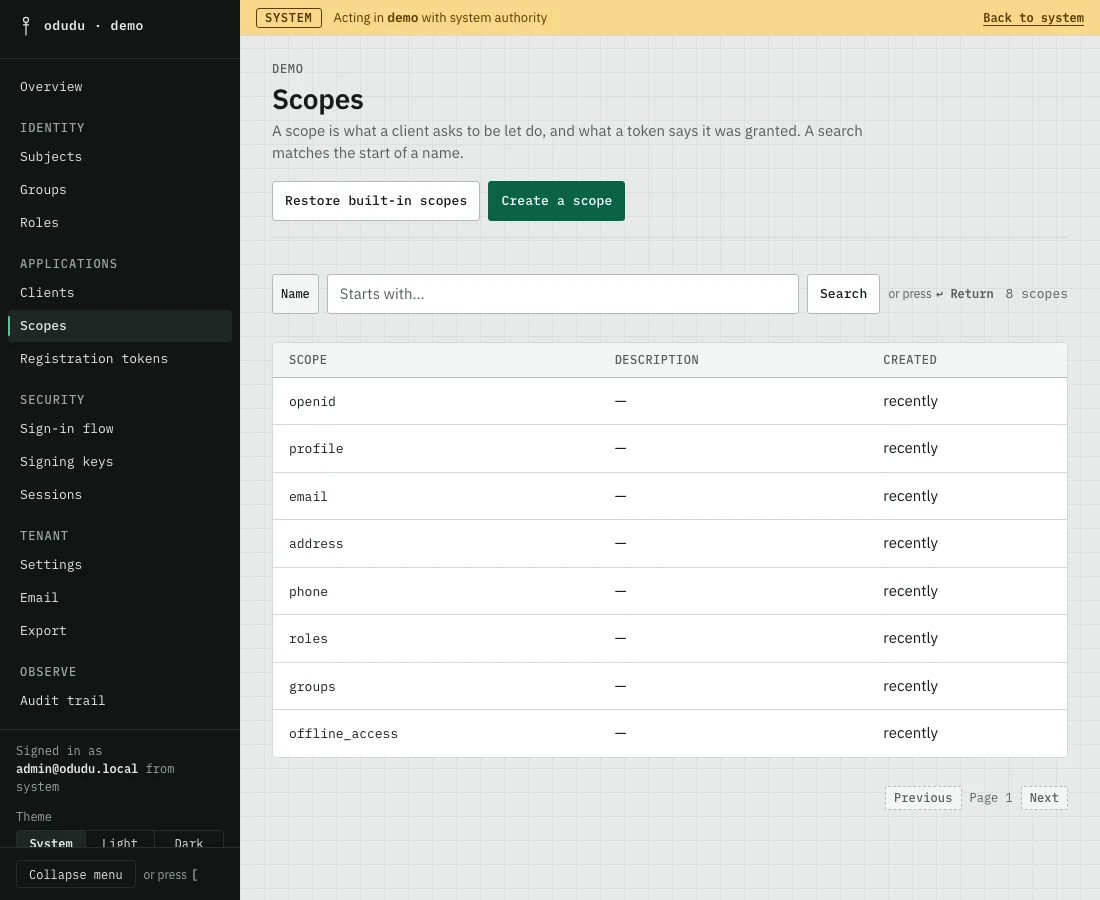
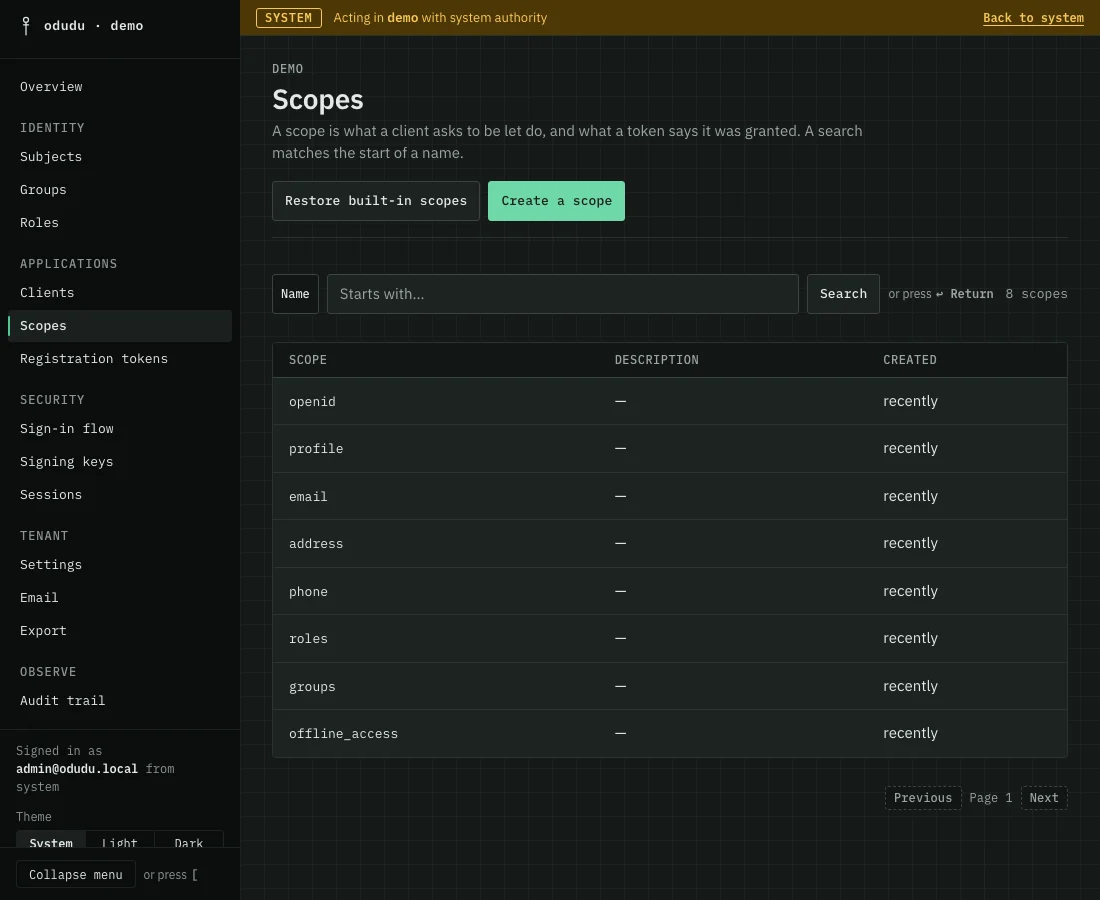
A scope is a name an application uses to say what it wants, such as profile or reports:read. When a person signs in, the scopes the application asked for decide what its tokens carry, and the consent screen can list them so the person knows what they are agreeing to. This page is for adding your own and for choosing which clients get which. It needs the manage-tenant capability; the menu entry is Scopes under APPLICATIONS.
1. Create a scope
Choose Create a scope. Give it a Name and, if you want, a Description, then choose Create scope. An application asks for the scope by this name and a token carries it, so the name is fixed once the scope exists. Make a new scope and assign it instead of renaming.
2. Decide where its claims are carried
Open the scope. On the General tab, In the ID token and In the access token choose where the scope's claims appear once it is granted.
3. Write what a person is shown
Still on the General tab, Consent text is what the consent screen says in place of the scope's name, and Display order puts it among the others, lowest first. Both are optional.
4. Give it to clients
A scope does nothing until a client is assigned it. There are two ways.
- For clients made from now on, set New clients on the General tab to Assigned as default or Assigned as optional. Not assigned leaves the scope out. Clients that already exist are not changed.
- For a client that exists, open the scope's Clients tab, pick the client under Client to assign and choose Assign to a client. Or open the client and use its Scopes tab, which is the same assignment seen from the other side.
A default scope goes to a request that names no scope. An optional scope goes only to a request that names it.
5. Connect roles
The Roles tab lists the roles a token carries when it is granted this scope. With none mapped, a client that has Include all roles in tokens off gets no roles from this scope. That switch is set on each client, under Tokens.
The Claim mappers tab chooses which mappers build the scope's claims, under Bound mappers. While none is bound, the console says "Nothing bound. These mappers run by default." and lists them ticked and greyed, each marked Used because nothing is bound. Tick another mapper and only that one runs. Clear every tick to go back to the defaults.
Mappers are built in. You choose among them and cannot add your own, and a person has no custom attributes to put in a token yet. Both are on the roadmap.
The Activity tab lists every change made to the scope.
6. Bring back a built-in scope
Every tenant starts with eight scopes, and you may delete all of them except openid. If one is gone and a client needs it again, choose Restore built-in scopes above the list. The dialog names the scopes this tenant is missing; choose Restore and it creates each of them again with the settings a new tenant is given. A scope that is still there is left exactly as you edited it, and when none is missing the dialog says so and offers nothing.
A scope is built in because of its name alone. One you created under a built-in name, such as your own roles, is treated as built in: its delete asks for the same typed name, and Restore leaves it be because that name already exists.
Restoring does not bring back what the deletion took with it. The scope comes back without its client assignments and role mappings, so assign it to clients and map its roles again.
Things that cannot be undone
Delete on the General tab, named for the scope as in Delete reports:read, takes the scope off every client that carries it and unmaps every role mapped to it. Before you confirm, the dialog counts both, for example 3 clients and 2 roles, and you type the scope's name to go ahead. Applications that asked for it will then be refused or issued less.
For a built-in scope such as roles the dialog also says that it is one, and that Restore built-in scopes creates it again, though not the clients and roles it had. openid has no delete at all: it would be taken off every client, the built-in admin client included, and could lock every administrator out.
Do the same through the API
The calls are in the scopes area of the admin API; assigning a scope to a client is on the clients area. To understand what a scope is, read the Scopes concept. From the command line, odudu seed scope and odudu seed assign-scope do the same for a first installation, and odudu seed restore-scopes brings back the built-in scopes.