Settings in the console
Most of what makes one tenant behave differently from another is a setting: how long a sign-in lasts, whether people may register themselves, what a password must contain, how many wrong guesses lock an account. They all live on one page, in sections you can reach from a row of names at the top, and each section saves on its own. It needs the manage-tenant capability; the menu entry is Settings under TENANT.
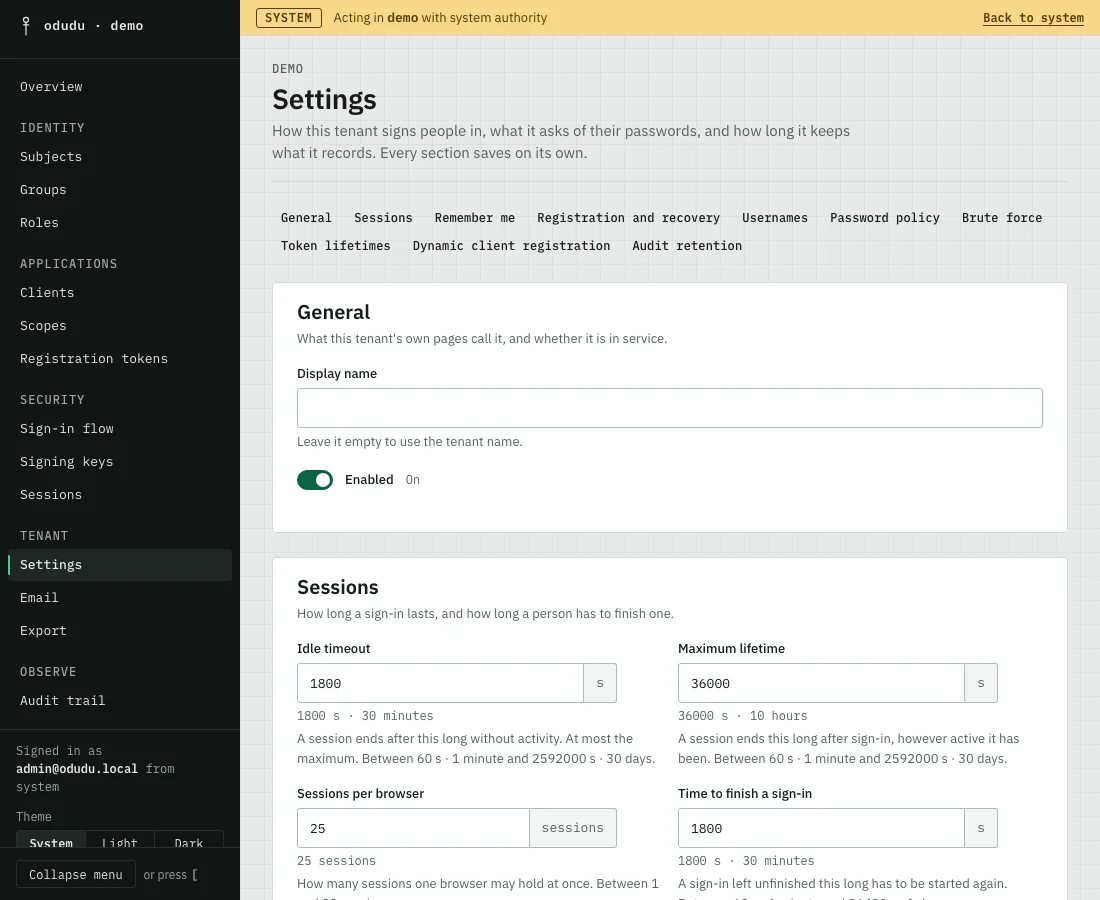
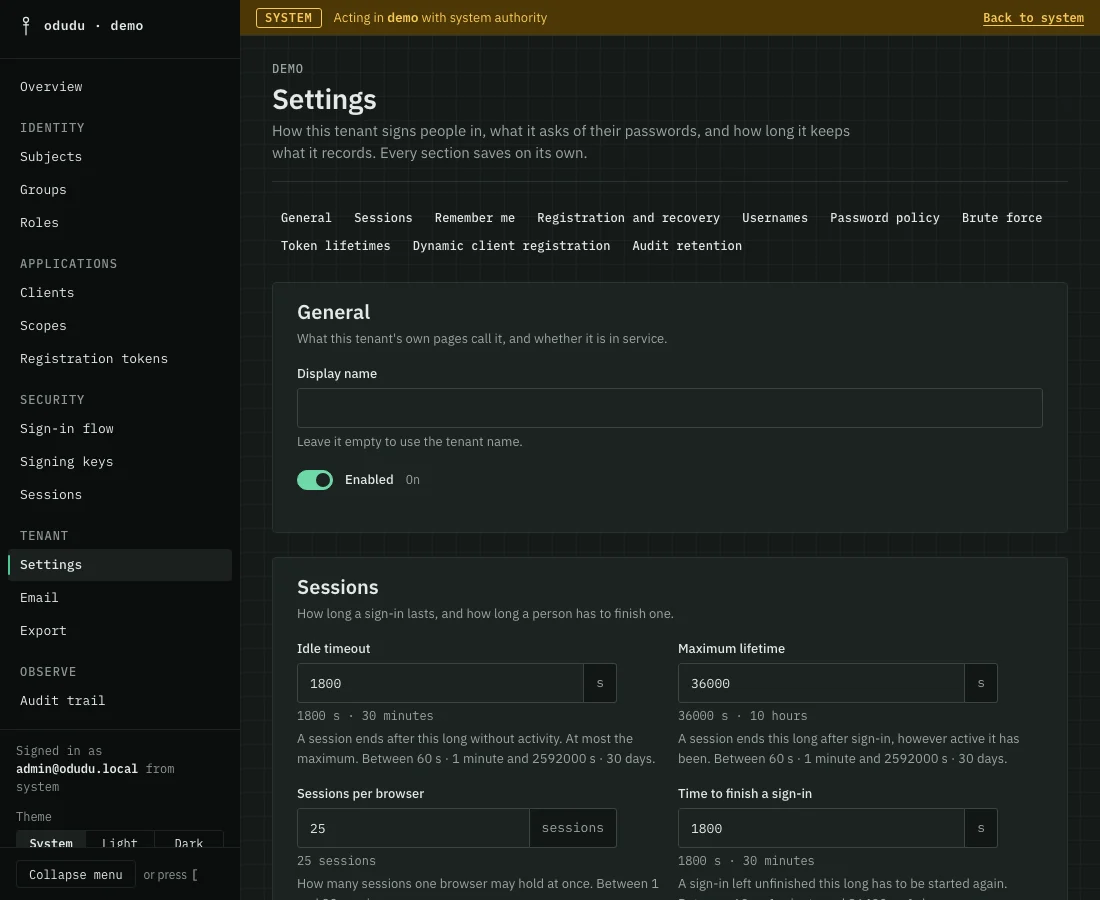
1. Find the section
Choose a name from the row at the top to jump to it: General, Sessions, Remember me, Registration and recovery, Usernames, Password policy, Brute force, Token lifetimes, Dynamic client registration and Audit retention. Each field says what it does and the range the server accepts. Durations show the plain reading beside the seconds, for example 1800 s · 30 minutes.
2. Change a section and save it
Change the fields you want, then choose the Save button of that section. Nothing else on the page is sent. If somebody else changed the same section while you had it open, the console says so and shows what they set, so you do not overwrite it unseen.
Some common changes:
- To let people create their own accounts, turn on Self-registration under Registration and recovery, and turn on Verify email addresses if you want a link mailed to them. Mail needs an Email relay. The sign-in page then shows a link reading Create an account, and one reading Forgot password? when password reset is on too. An app can send a person straight to the registration page with
prompt=create; see a sign-up button. A form that is refused comes back with the problem beside the field. A taken username is always named. With Verify email addresses on, the account is created when the person opens the link and confirms, and an address that already has an account is not named: the page says Check your email as it does for a new address, and that address's owner gets a mail saying someone tried to register it. With it off, nothing can be mailed, so the form says the address is registered. Verification and registration links ask for one click, so mail scanners that open links cannot spend them. A mailed verification or reset link shows Continue to sign in only in the browser where the person started, and only while that sign-in is open. Anywhere else the page says to return to the application and sign in again. - To change what a password must satisfy, edit Minimum length and the other fields under Password policy; Choose a password policy says what to pick. A rule applies to the next password somebody sets, never to one already chosen.
- To shorten how long a person stays signed in, lower Idle timeout and Maximum lifetime under Sessions.
- To let applications register themselves with a token, set Policy under Dynamic client registration; the Registration tokens page does the rest.
- To keep the audit trail for longer or shorter, change Keep events for under Audit retention, and choose which kinds of event are recorded. Changes and reads by administrators are always recorded.
3. Unlock everyone
Under Brute force, Failures before a lockout and the lockout lengths decide when an account locks. If a mistake locked many people at once, Clear all lockouts forgets every failed sign-in on record in the tenant and asks you to confirm. One account's lockout is cleared on that person's Credentials tab instead.
4. Choose a password policy
A long password protects better than a complicated one, and the console's defaults follow the NIST guidance on that (SP 800-63B-4). New tenants start with a minimum of 15 characters.
- Length: a password used alone should have at least 15 characters. Where every sign-in also needs a second factor, 8 is enough. If your minimum is lower than 15 and a second factor is not required of everyone, a note under the section says so. The note is advice, and you can still save. To require the second factor, turn on Ask every subject for a one-time password in Sign-in flow.
- Character rules: the digit, uppercase, lowercase and special-character rules are off by default. NIST advises against them, so turn one on only if you must. When one is on, the password pages list it for the person.
- Expiry: Password lifetime is 0 by default, so a password never expires. NIST advises against changing passwords on a schedule.
- Common passwords: a password is always refused when it is on a list of about 38,000 common ones, or when it is only the tenant's name, the username, or the name part of the email. Only the whole password is compared, ignoring case:
baseballis refused andbaseball and a long walk homeis not. This has no setting. - Typing: passwords are stored in Unicode NFC form, so
étyped as one character or aseand an accent is one password. A password set before this change still signs in.
A person with a passkey signs in without a password, so none of this applies to that sign-in.
Every setting
Each line gives the label, then the name the admin API and odudu seed tenant --set use. A tenant's current values are in the settings transcript.
General
- Display name (
display_name): what the tenant's own pages call it. Empty uses the tenant name. - Enabled (
enabled): off disables the whole tenant.
Sessions
- Idle timeout (
sso_session_idle_seconds): a session ends after this long without activity. At most the maximum. - Maximum lifetime (
sso_session_max_seconds): a session ends this long after sign-in, however active. Both run from 1 minute to 30 days. - Sessions per browser (
max_sessions_per_browser): how many people one browser may be signed in as at once, 1 to 32. - Time to finish a sign-in (
login_ttl_seconds): an unfinished sign-in must be started again after this, 1 minute to 24 hours.
Remember me
- Offer remember me (
remember_me_allowed): the sign-in page shows the choice only while this is on. A person who ticks it stays signed in for the longer times below. - Idle timeout (
remember_me_idle_seconds) and Maximum lifetime (remember_me_max_seconds): the same two limits for a remembered session, up to a year.
Registration and recovery
- Self-registration (
registration_allowed): anybody may create an account on the sign-in page. - Verify email addresses (
verify_email): the account is created when the person confirms a mailed link. - Verification link lifetime (
verify_email_ttl_seconds): how long that link works, up to 7 days. - Password reset by mail (
reset_password_allowed): a person who forgot their password may ask for a reset link. - Reset link lifetime (
reset_password_ttl_seconds): how long a reset link works, up to 24 hours.
When somebody sets a new password from a reset link, every session they hold ends and every token grant they gave is revoked, offline ones too. Anyone else signed in to that account is signed out. The link stops working once it is used, and it asks for one click first, so a mail scanner that opens it cannot spend it.
Usernames
- Usernames can be renamed (
username_editable): an administrator may change a username. - Sign in with a verified email address (
login_with_email): the sign-in form takes a verified address in place of a username.
Password policy
- Minimum length (
password_min_length), 8 to 256 characters. - Require a digit, Require an uppercase letter, Require a lowercase letter and Require a special character (
password_require_digit,password_require_uppercase,password_require_lowercase,password_require_special). - Refuse the username (
password_not_username) and Refuse the email address (password_not_email): a password may not be only that. - Passwords remembered (
password_history_depth): a new password may not repeat one of this many before it. 0 remembers none, 24 is the most. - Password lifetime (
password_max_age_days): a password older than this must be changed. 0 never expires one. otp_requiredis the Ask every subject for a one-time password switch of Sign-in flow.
Brute force
- Failures before a lockout (
brute_force_max_failures), 1 to 100. - First lockout (
brute_force_lockout_seconds): how long the first lockout lasts, up to a day. - Longest lockout (
brute_force_max_lockout_seconds): each repeat lasts longer, up to this. - Failures forgotten after (
brute_force_failure_reset_seconds): failures this old stop counting, 1 minute to 30 days.
Token lifetimes
- Access token (
access_token_ttl_seconds), ID token (id_token_ttl_seconds): up to an hour each. - Refresh token (
refresh_token_ttl_seconds): how long a refresh token lives. - Authorization code (
authorization_code_ttl_seconds): a client has this long to trade a code for tokens, up to 10 minutes.
A client can carry lifetimes of its own, which win over these.
Dynamic client registration
- Policy (
client_registration_policy): Closed: only an administrator creates clients, With a registration token or Open: any application may register. - Most clients (
max_clients): a tenant with this many clients refuses to make more, whoever asks. 0 allows none, and a new tenant starts at 200.
Audit retention
- Keep events for (
audit_retention_days): 1 to 3650 days. - Events recorded (
audit_event_types): Changes by administrators and Reads by administrators are always recorded. You choose Sign-ins and refused sign-ins, Sessions starting and ending, Tokens issued and revoked, and Passwords, keys and codes set or changed.
Things that cannot be undone, or that end somebody's work
- Turning Enabled off under General disables the whole tenant. You type the tenant's name to confirm, every session ends and nobody can sign in until you turn it on again.
- Clear all lockouts cannot be undone. It forgets failures for accounts that really were being attacked as well as for the ones that were not.
- Shortening the retention period means older events are removed on the next retention pass. A removed event is gone.
- Lowering a lifetime or a limit applies to new tokens and sessions. A person who already holds a longer one keeps it until it ends, unless you also end their sessions.
Do the same through the API
The calls are in the settings area of the admin API, with the lockout call in lockouts. The settings of the whole deployment, which no tenant changes, are in the configuration reference. From the command line, odudu seed tenant --set changes one for a first installation.