Signing keys in the console
Every token Odudu issues is signed with a key, and every application that receives one checks the signature against the tenant's published key set. Keys should be replaced now and then, and the trick is doing it without a moment when a token is signed with a key nobody has heard of. The console does it in steps: you stage a new key, wait while applications fetch it, promote it, and finally retire the old one. It needs the manage-keys capability; the menu entry is Signing keys under SECURITY.
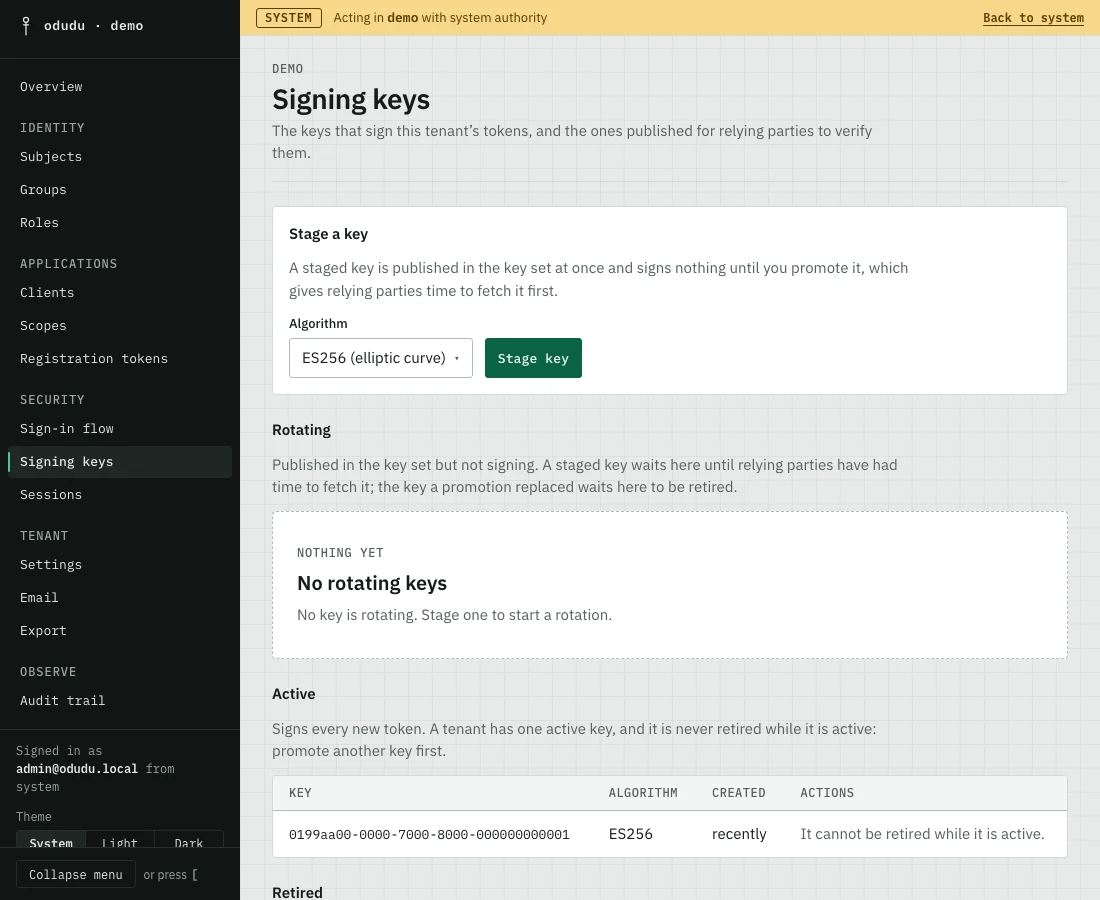
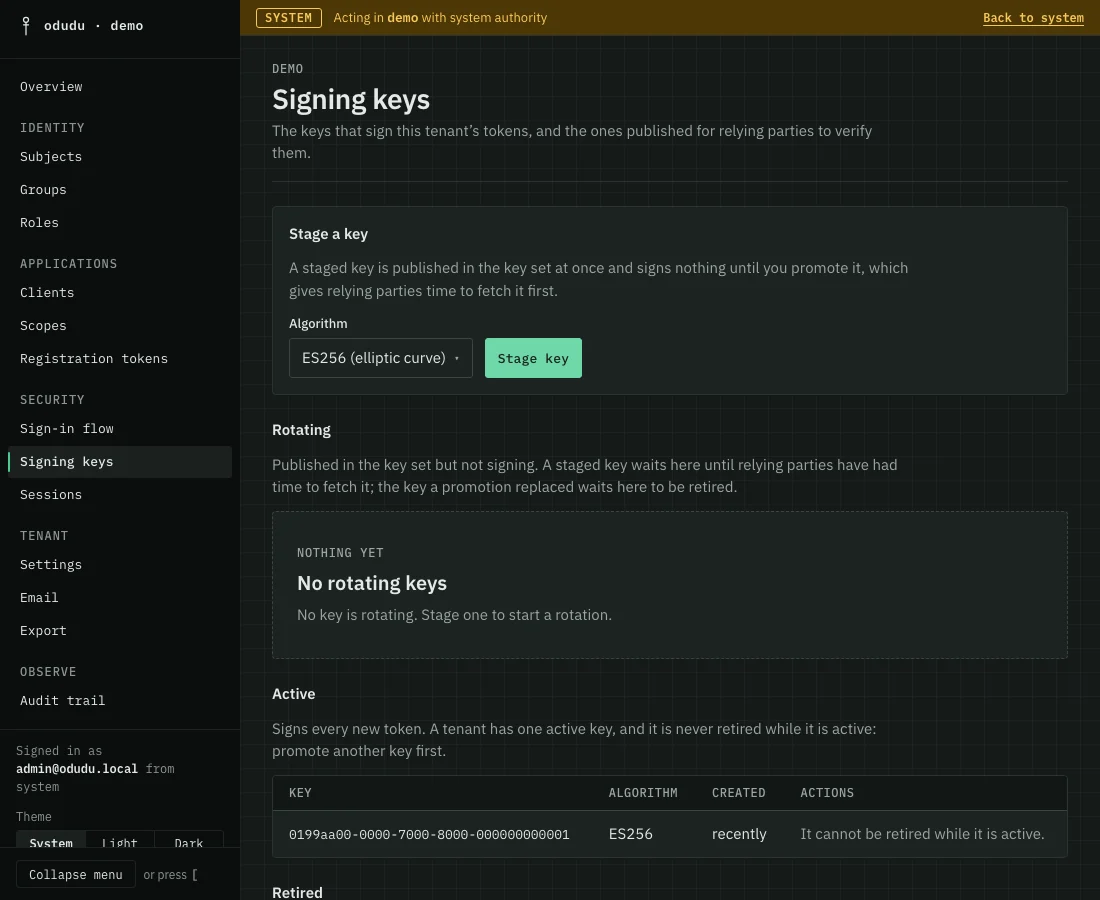
A tenant's keys sit in three lanes: Rotating for keys published but not signing, Active for the one key that signs every new token, and Retired for keys published nowhere.
1. Stage a new key
At the top, under Stage a key, choose an Algorithm, ES256 (elliptic curve) or RS256 (RSA), and choose Stage key. The new key joins the published key set at once but signs nothing, and it waits in Rotating.
RS256 is the most widely supported algorithm. ES256 gives smaller keys and signatures. A client may name the algorithm it wants for its ID tokens, and the tenant must hold an active key of that algorithm.
2. Wait while applications fetch it
Applications refresh the key set from time to time. Wait until every token already issued has had time to expire, so that nothing signed by the old key can still arrive at an application that has not seen the new one. The row says Ready when the console judges the wait to be over, and the tenant's Overview says "A signing key is ready to promote" at the same moment. A key that reads Not ready has been published for less than the longest a token lives, and one that reads Changes algorithm is of a different algorithm from the active key.
3. Promote it
Choose Promote on the key's row and confirm with Promote key. From now on the new key signs every new token. The old key stays published, in Rotating, so tokens it already signed still verify.
4. Retire the old key
When no token the old key signed can still be in use, choose Retire on its row. You type the key's ID to confirm, then choose Retire key. The key is no longer published, so a token it signed stops verifying at once.
5. Delete it later
A retired key can be deleted. Choose Delete on its row and confirm with Delete key. This only tidies the list.
Things that cannot be undone
- Retire key cannot be undone. A token signed with a retired key stops verifying everywhere at once. The token the console holds for you may be one of them, in which case your console session ends and you sign in again.
- Delete key removes the key record for good. It signs nothing and no token depends on it.
- The active key can never be retired. Promote another first.
- Promoting a key of another algorithm changes the algorithm of every new token, so check that every application can verify it first.
Do the same through the API
The calls are in the keys area of the admin API. The published key set an application reads is in the endpoint reference, and Tokens explains what the signature protects.