Subjects in the console
A subject is anything that signs in to a tenant: a person, a service or an agent. This is where you add one, help one who is locked out, and take one away. It needs the view-users capability to read and manage-users to change; the menu entry is Subjects under IDENTITY.
1. Find a subject
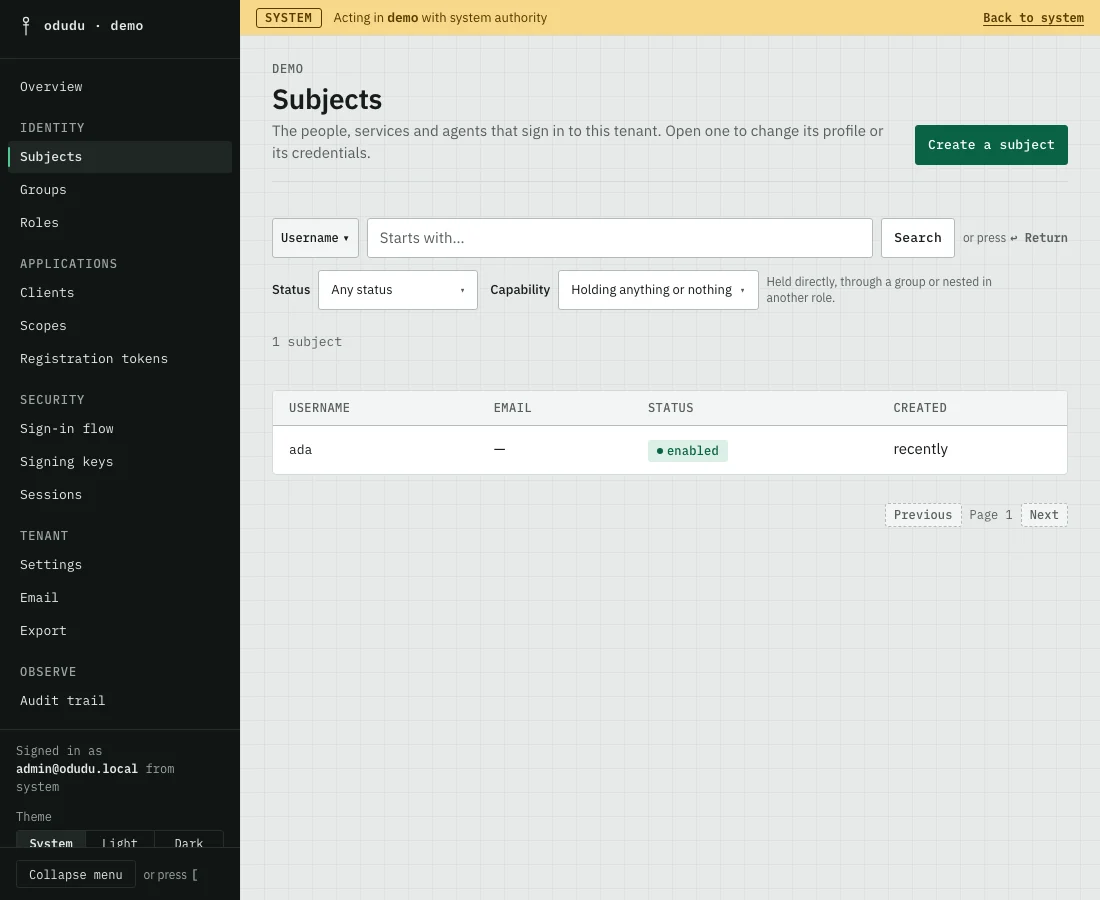
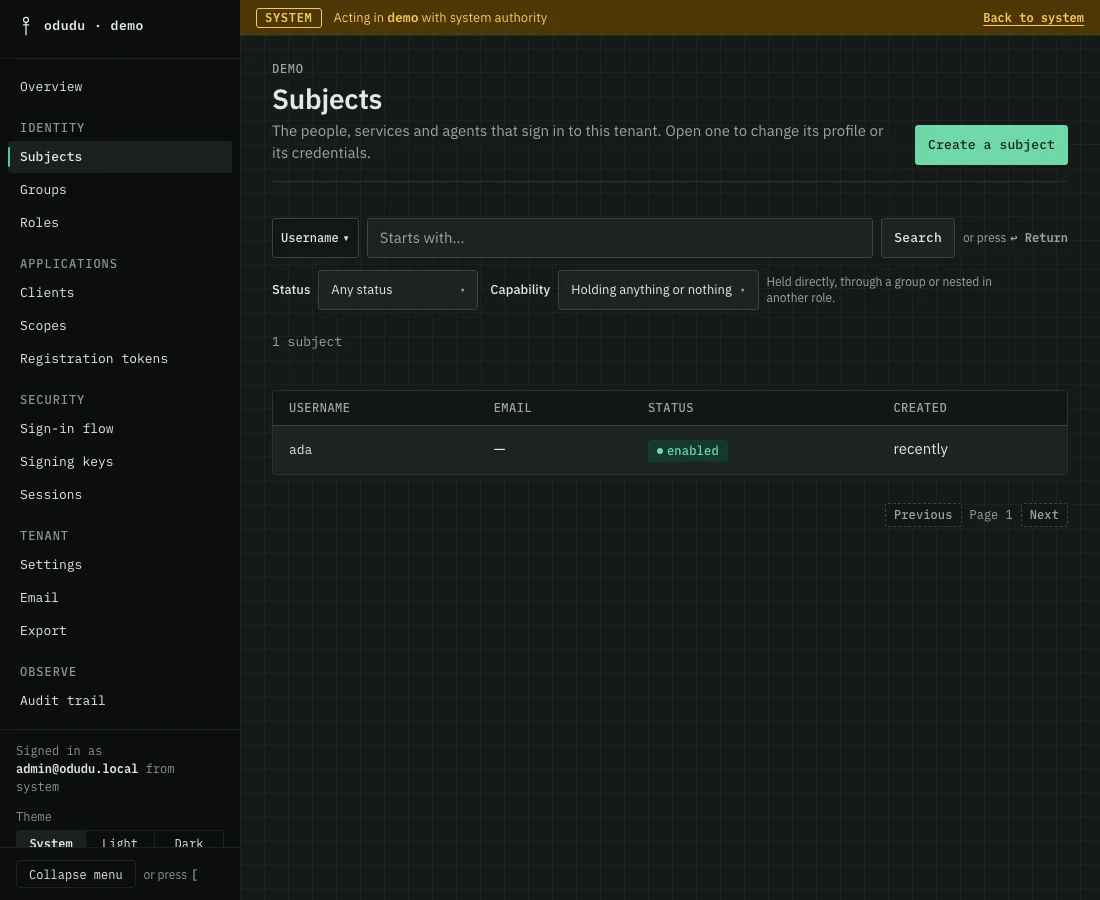
Open Subjects. The list shows the Username, Email, status and creation time of each subject, a page at a time. Search by the start of a Username or an Email, or narrow the list by Status and by the Capability a subject holds. The default, Holding anything or nothing, shows everyone. Opening a row opens the subject's record.
2. Create a subject
Choose Create a subject. A person needs only a Username; an Email is optional and can be added later. Then choose Create subject.
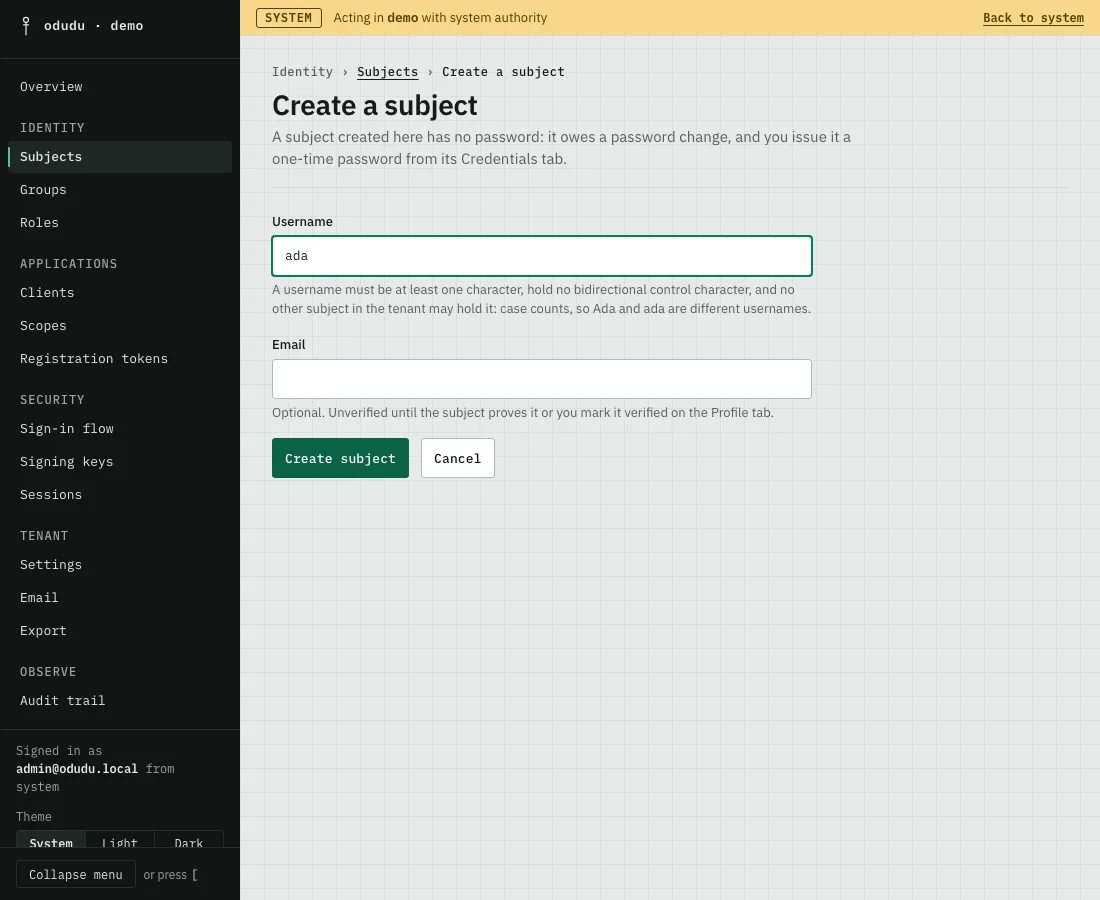
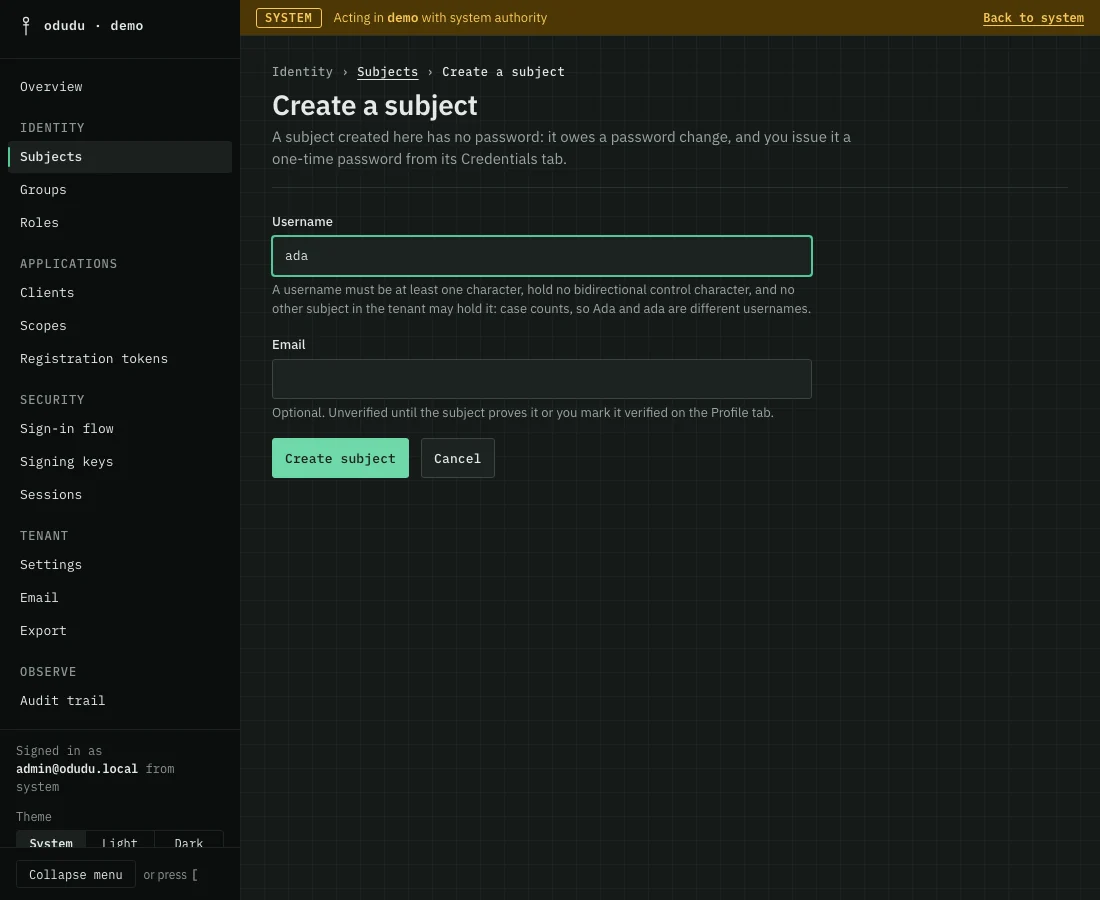
There is no password field, on purpose. Nobody who administers Odudu chooses another person's password, so the next step gives the person a way to set their own.
3. Give them a first password
Open the subject, then the Credentials tab. You have two ways, and the tab explains which applies.
- If the subject has an email address, choose Send a password reset email. The person chooses a password from their own mailbox. The tenant needs a mail relay for the mail to leave the server.
- Otherwise choose Issue a one-time password. The console asks you to confirm with Issue password, shows you a password once, and the person must change it at their next sign-in.
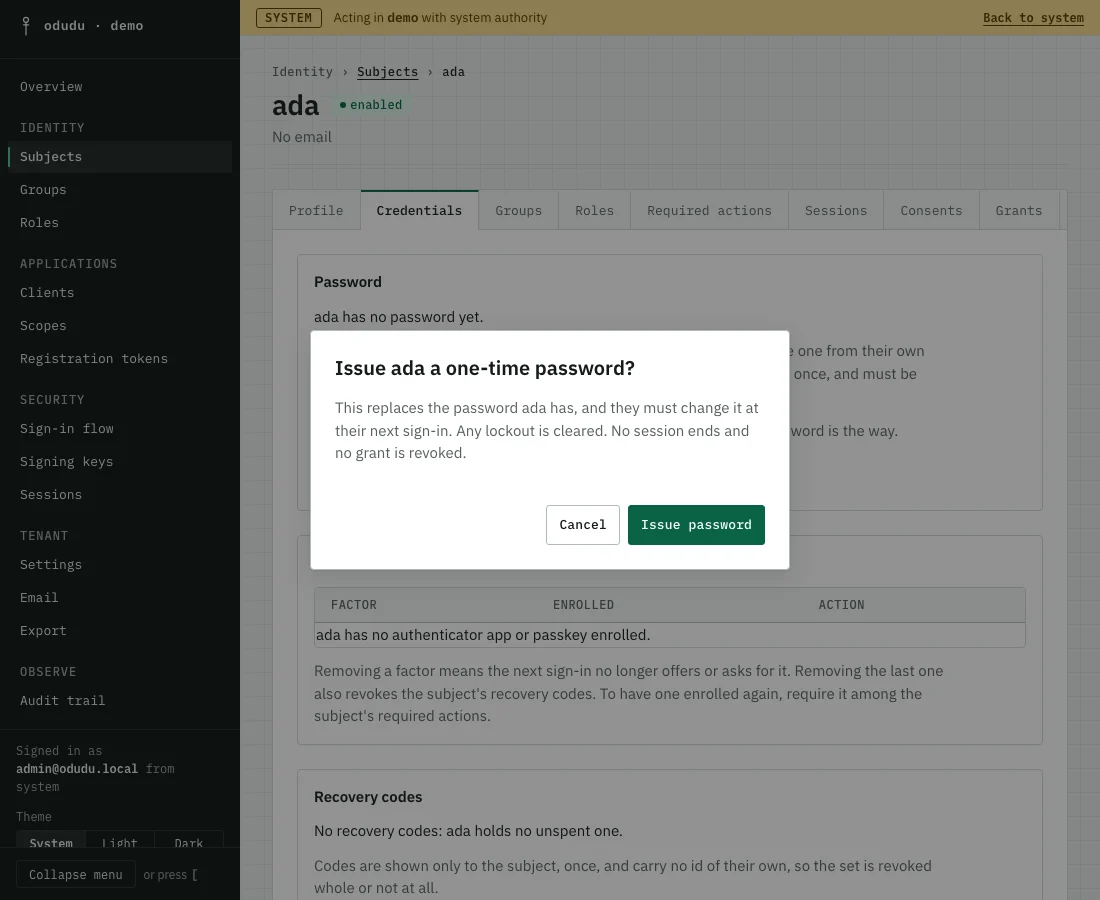
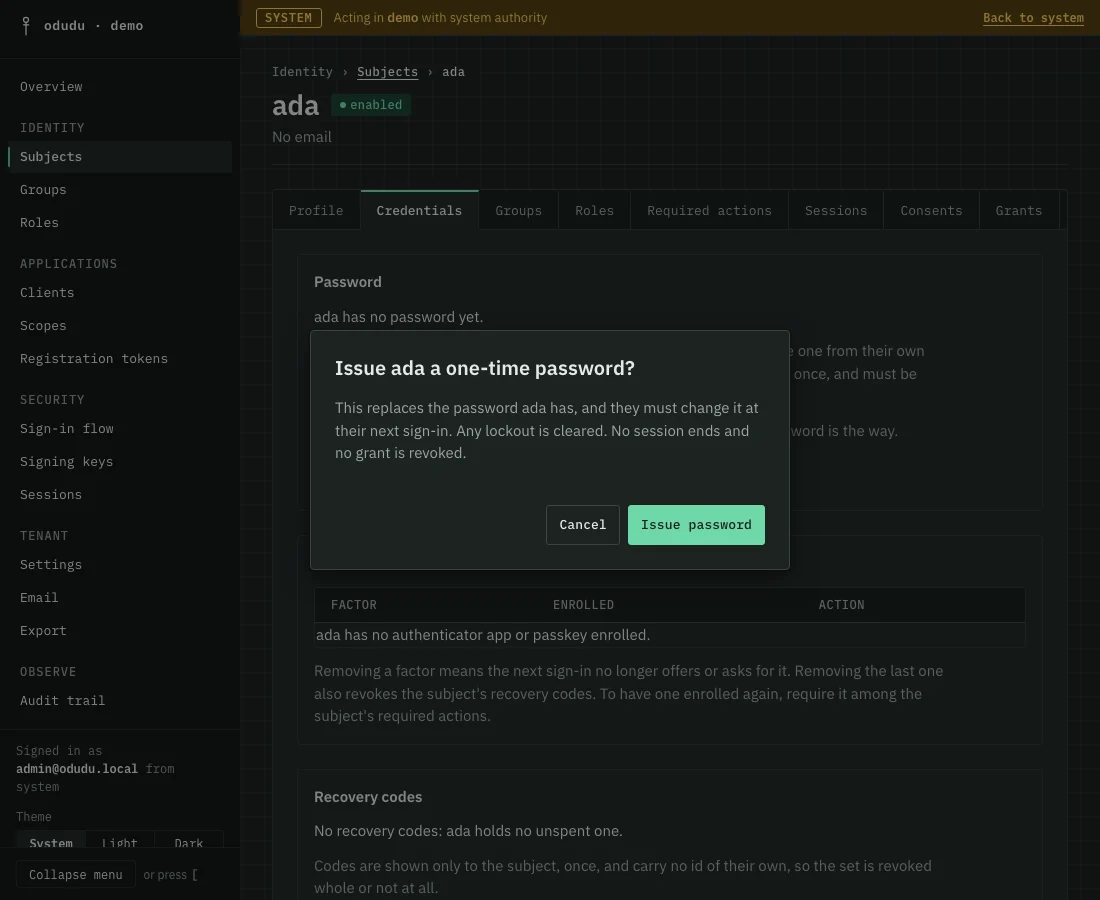
Copy the password before you close the dialog, because it cannot be shown again. Issuing another replaces the first.
4. Look through the record
A subject's record has a tab for each part of an account.
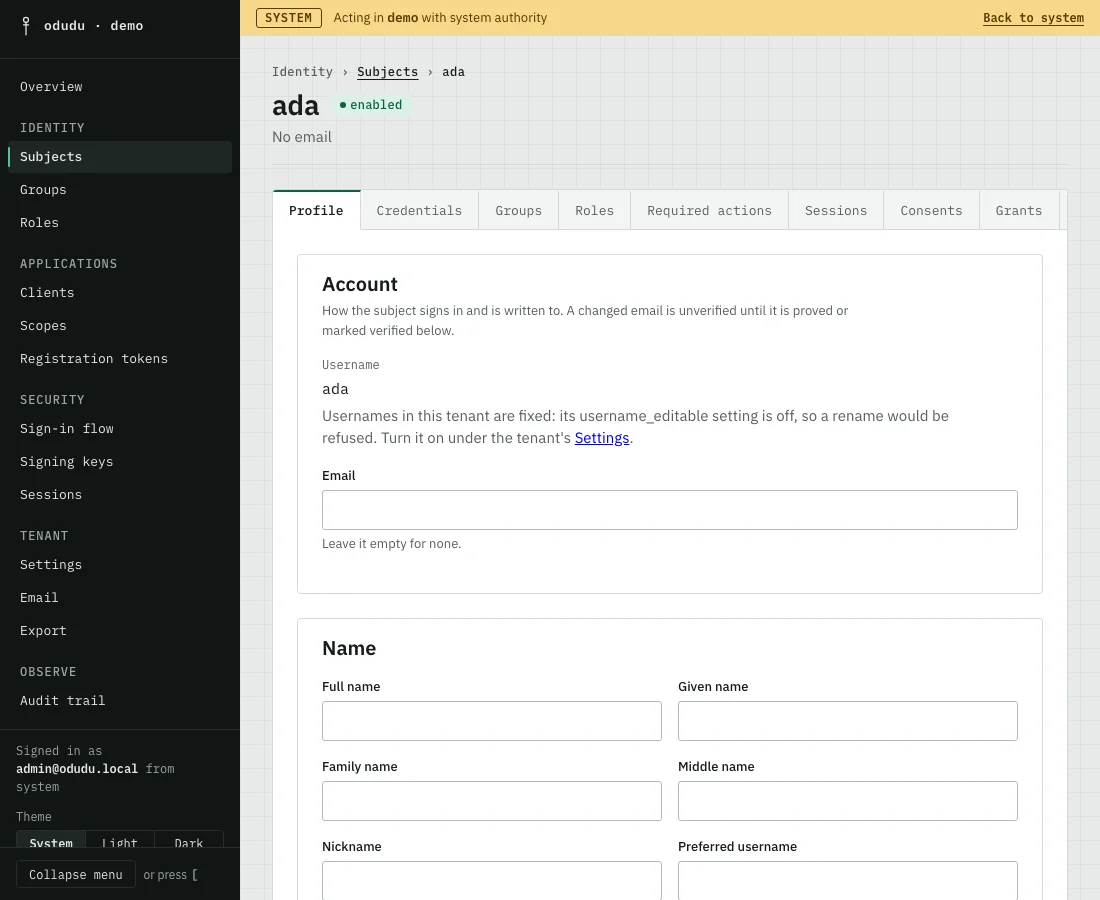
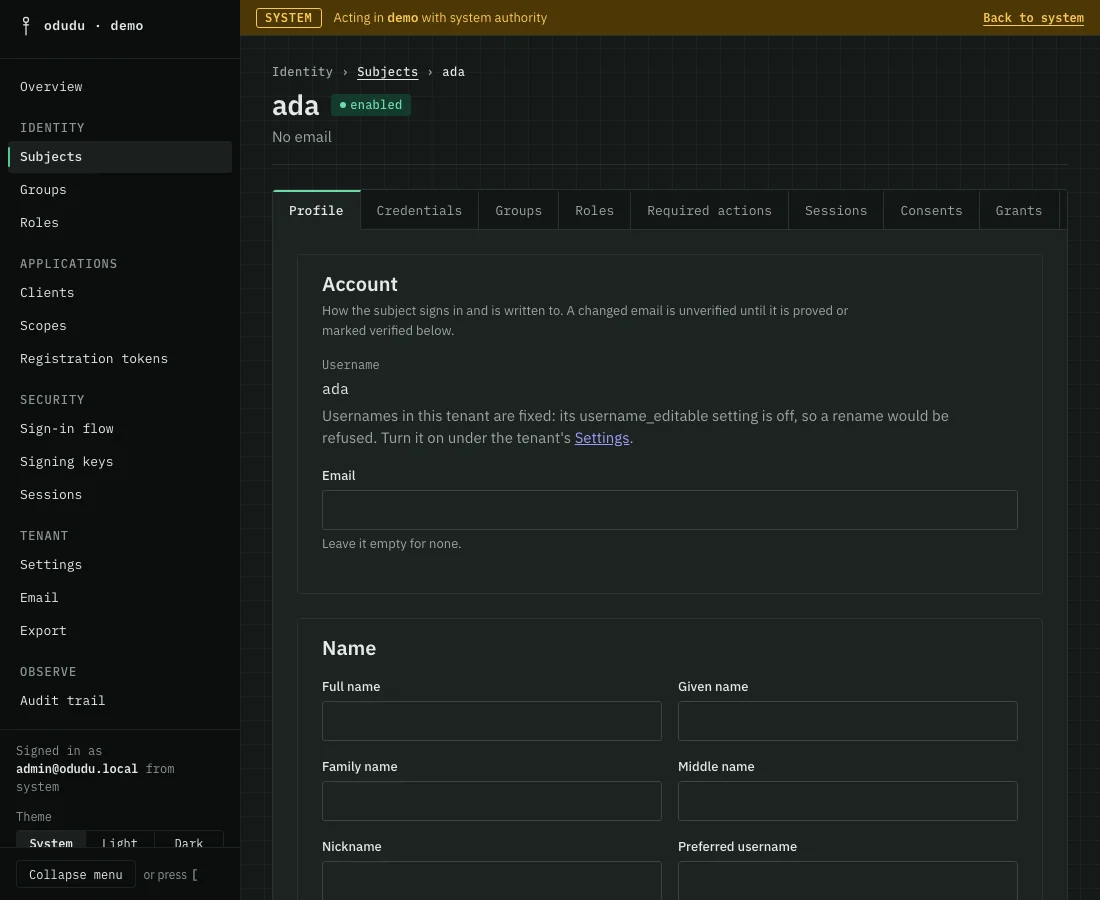
- Profile holds the account, the name, the details, the address and whether the email and phone number are verified. A section saves on its own with its own Save button.
The name fields are Full name, Given name, Family name, Middle name, Nickname and Preferred username, which is what the person likes to be called and is not the sign-in username. The details are Gender, Birthdate, Time zone, Locale, Profile page, Website, Picture and Phone number, with Phone number verified beside it. The address is Formatted address, Street, Locality, Region, Postal code and Country. An application receives the ones its scopes carry:
profile,email,phoneandaddress. - Credentials holds the password, the second factors the person enrolled, their recovery codes and any lockout. When you revoke recovery codes, tick Ask for a new set at next sign-in to have the person given new ones.
- Groups lists the groups the person belongs to; the groups' roles come with them.
- Roles assigns roles to the person directly, and sets what they may do in the admin console under Admin capabilities.
- Required actions is what the next sign-in asks for first: Choose a new password, Set up an authenticator app, Register a passkey or Generate recovery codes. Required actions to email sends the person a link that takes them through the ones you tick, in order. The password is set from the link itself; a second factor is enrolled only after they sign in.
- Sessions lists the person's live sign-ins.
- Consents lists what the person agreed to share with each client.
- Grants lists the tokens that are still in force, never the tokens themselves.
- Activity lists every change made to the subject.
Things that cannot be undone, or that end somebody's work
- Delete removes the subject with its credentials, sessions, grants, roles and group memberships. Disabling instead keeps everything and stops the person signing in. The profile has both, as Disable ada and Delete ada for a person called ada. A client's service account cannot be deleted here: delete the client instead.
- End every session on the Sessions tab signs the person out everywhere, and End session ends one.
- Revoke grants on the Grants tab ends a client's access for the person, including grants that outlive a session.
- Revoke recovery codes on the Credentials tab discards the person's whole set at once.
- Removing a second factor means the next sign-in no longer asks for it.
- A change that would leave a tenant with no enabled administrator is refused, so the last one cannot be disabled or deleted.
Do the same through the API
Every action here is a call in the subjects area of the admin API. Clearing the lockouts of a whole tenant is in lockouts. To choose a password rather than issue one, the command line has odudu seed user --password; the roadmap records why the console does not.