Tenants in the console
A tenant is one organisation's own space in Odudu, and this is where the spaces are made, copied and removed. You can only see it from the system tenant, because it reaches every other tenant. It needs the manage-tenants capability; the menu entry is Tenants under SYSTEM. An administrator of any other tenant never sees it.
1. Find a tenant
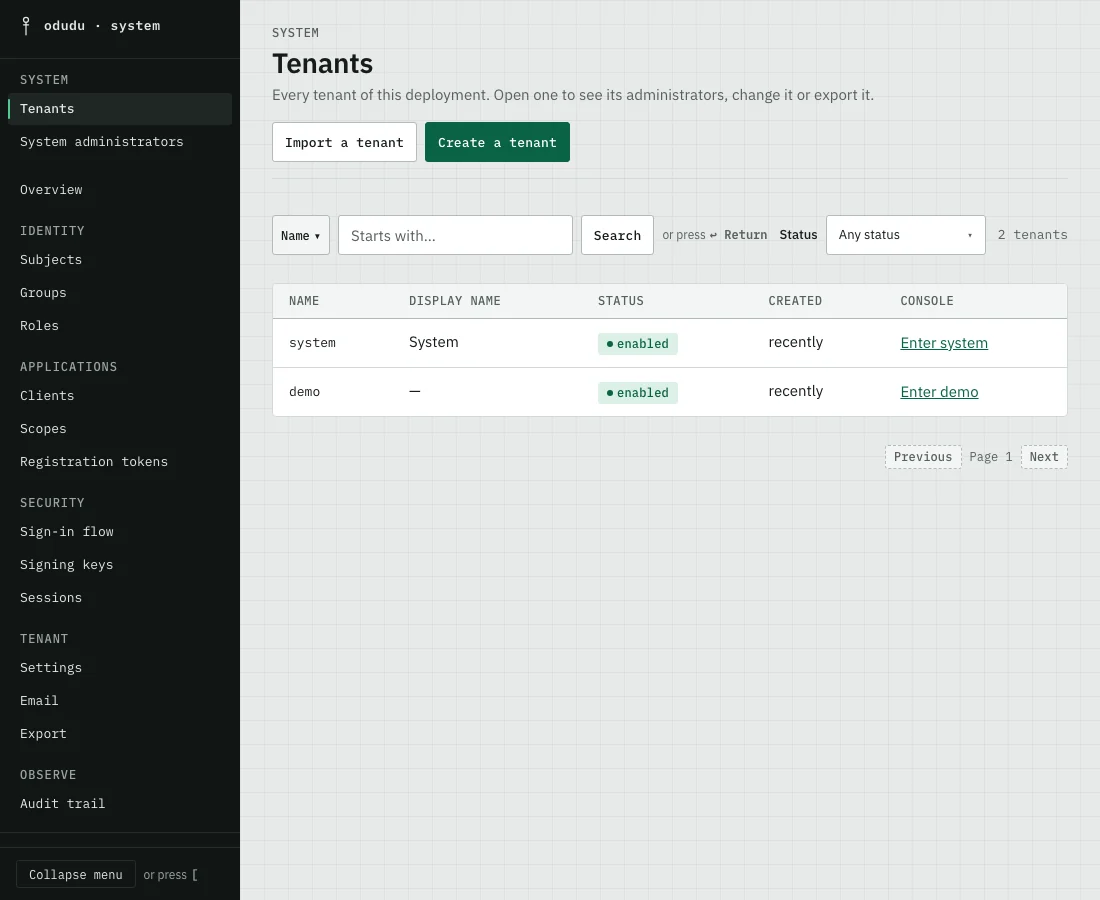
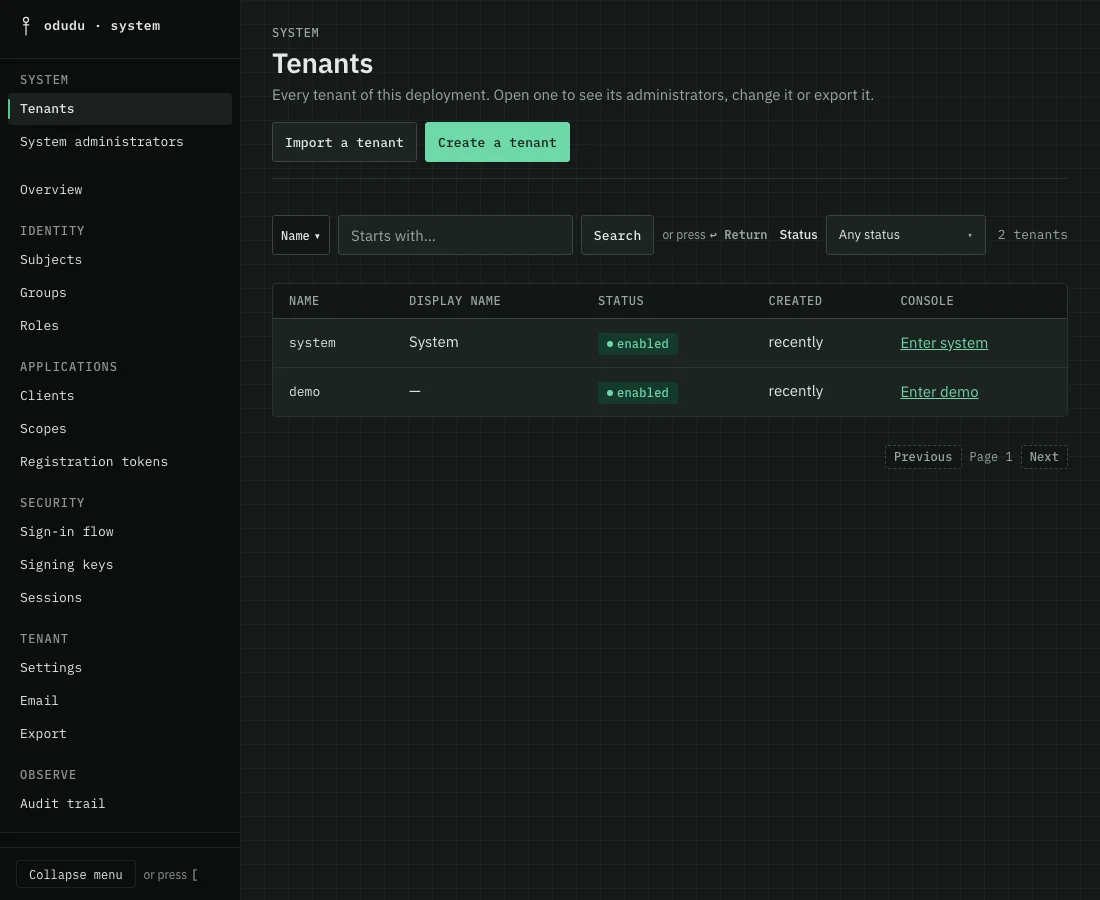
Open Tenants. Each row shows the Name, the Display name, the status and when it was created, and links to its record. Search by the start of a Name or a Display name, or narrow by Status. Choose the link beside a tenant, such as Enter demo, to step into its console.
2. Create a tenant
Choose Create a tenant. It takes three steps, and where you have got to is kept in the browser tab, so a reload carries on.
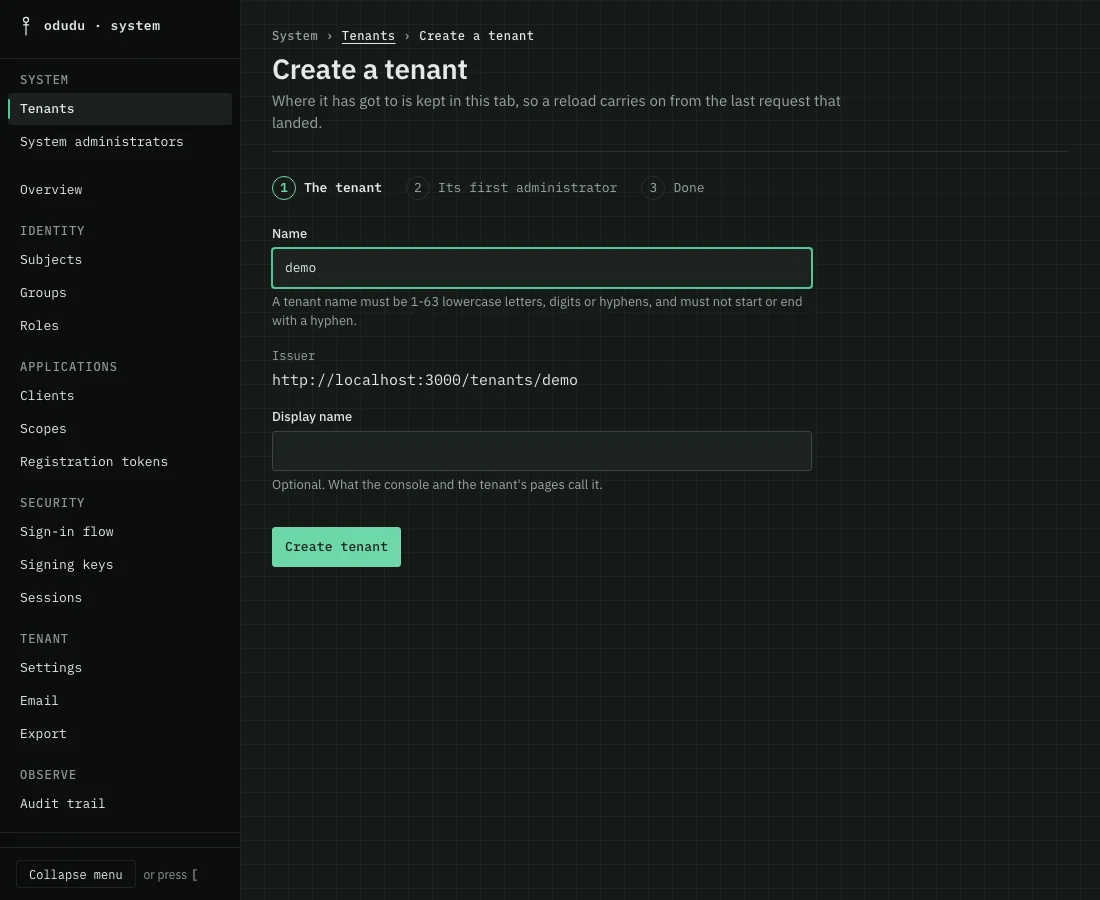
- The tenant. Enter a Name, one to sixty-three lowercase letters, digits or hyphens, which may not start or end with a hyphen. The tenant's issuer follows from it, and the name is fixed once the tenant exists, because it is in the issuer of every token. Add a Display name if you want one, then choose Create tenant.
- Its first administrator. A tenant nobody can sign in to is no use. Enter a Username, optionally an Email, and choose what they hold under What they hold, then Create administrator. The console shows a one-time password once, and the person changes it at their first sign-in.
- Done. Choose Open demo, with the tenant's own name, to see its record, or Enter demo to work in it.
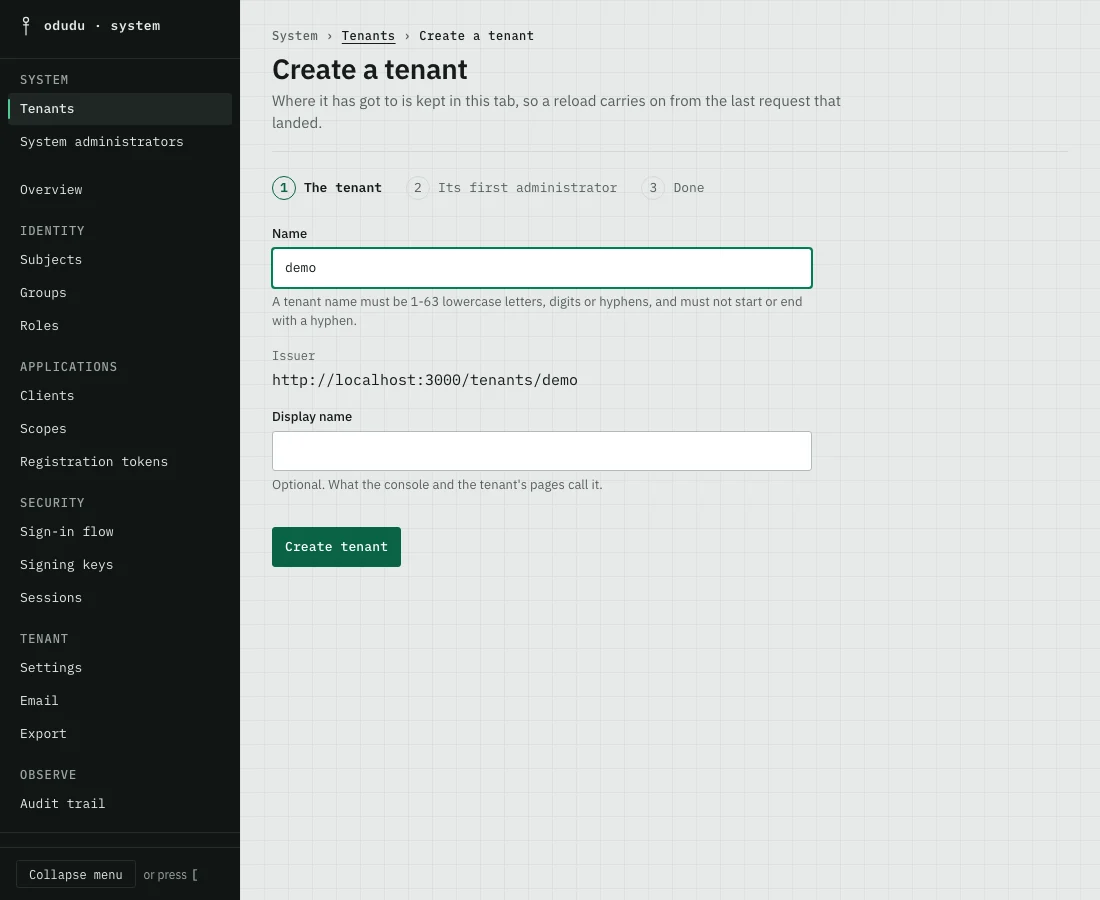
The tenant exists after the first step. If you stop before the second, open its record and use its Administrators tab to add one.
3. Open a tenant's record
The record has three tabs. General holds the Display name and the status, with the button that disables the tenant and the delete. Administrators lists everybody who holds an admin capability there and adds more with Add an administrator. Export is the next step.
4. Export it
Export makes a file of the tenant's configuration: its settings, sign-in flow, clients, roles, groups, scopes, registration policy and mail relay. Open the Export tab of a tenant's record, or the Export entry under TENANT in the menu when you are inside the tenant, which needs the manage-tenant capability. Turn on Include subjects to add up to ten thousand subjects with their profiles, roles, groups and required actions, and choose Export to a file.
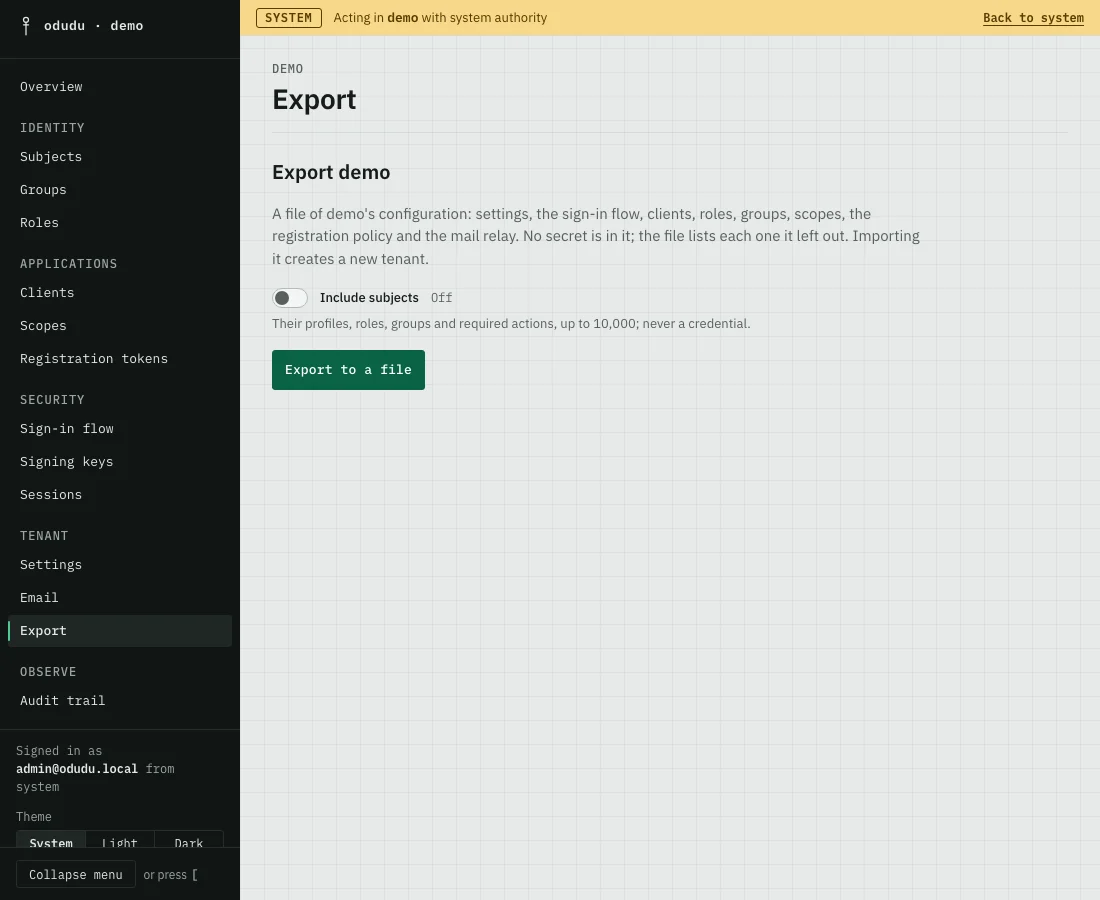
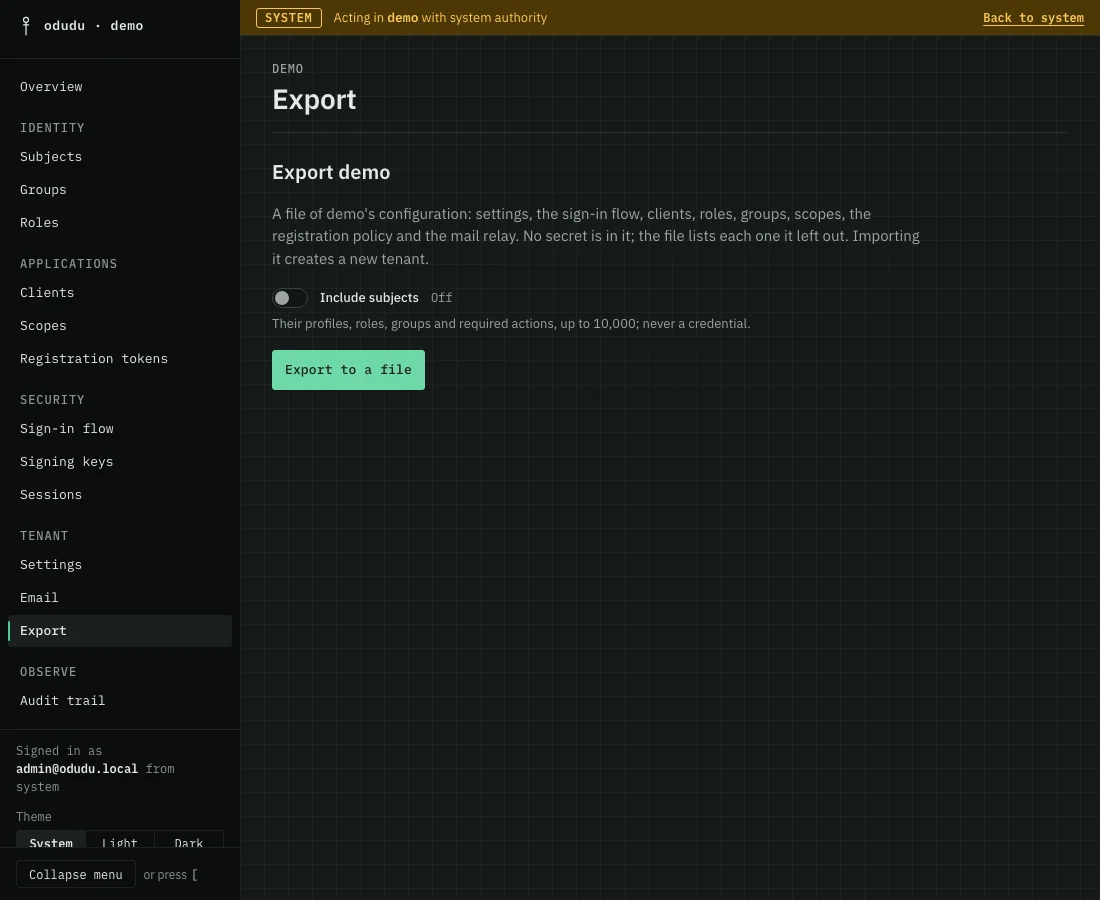
No secret is in the file, and it lists each one it left out. A credential is never exported, so subjects imported from it have no password until you issue one. A tenant with more than ten thousand subjects cannot be exported with its subjects.
5. Import a file as a new tenant
Choose Import a tenant, enter a Name and a Display name, choose the Tenant document with Choose a file…, and choose Import. An import always creates a new tenant. It never changes one that exists, and the whole file is checked before anything is written. Each confidential client in the file is given a new secret, and the console shows each once.
Things that cannot be undone, or that end somebody's work
- Disabling a tenant ends every session of the tenant and tells their applications. Nobody can sign in until you enable it again. You type the tenant's name to confirm, in a dialog whose button is named for it, such as Disable demo.
- Deleting a tenant removes a tenant and everything in it for good: its people, credentials, clients and their secrets, keys, settings and its whole audit trail. Only a disabled tenant can be deleted, and the system tenant never can. Export it first if you may want it back as a configuration.
Do the same through the API
The calls are in the tenants area of the admin API. From the command line, odudu seed tenant makes a tenant.