A first visit to the console
You have Odudu running and one administrator. In about ten minutes you will sign in, step into a tenant, learn what each part of the menu is for, open one person's record and find the entry in the audit trail that says who made it. Nothing here changes anything, so you can follow it on any installation.
If you have not started Odudu yet, begin with the quick start. It leaves you with a tenant called demo, a client called my-app and a person called ada, which is what the pictures below show.
1. Say which tenant you administer
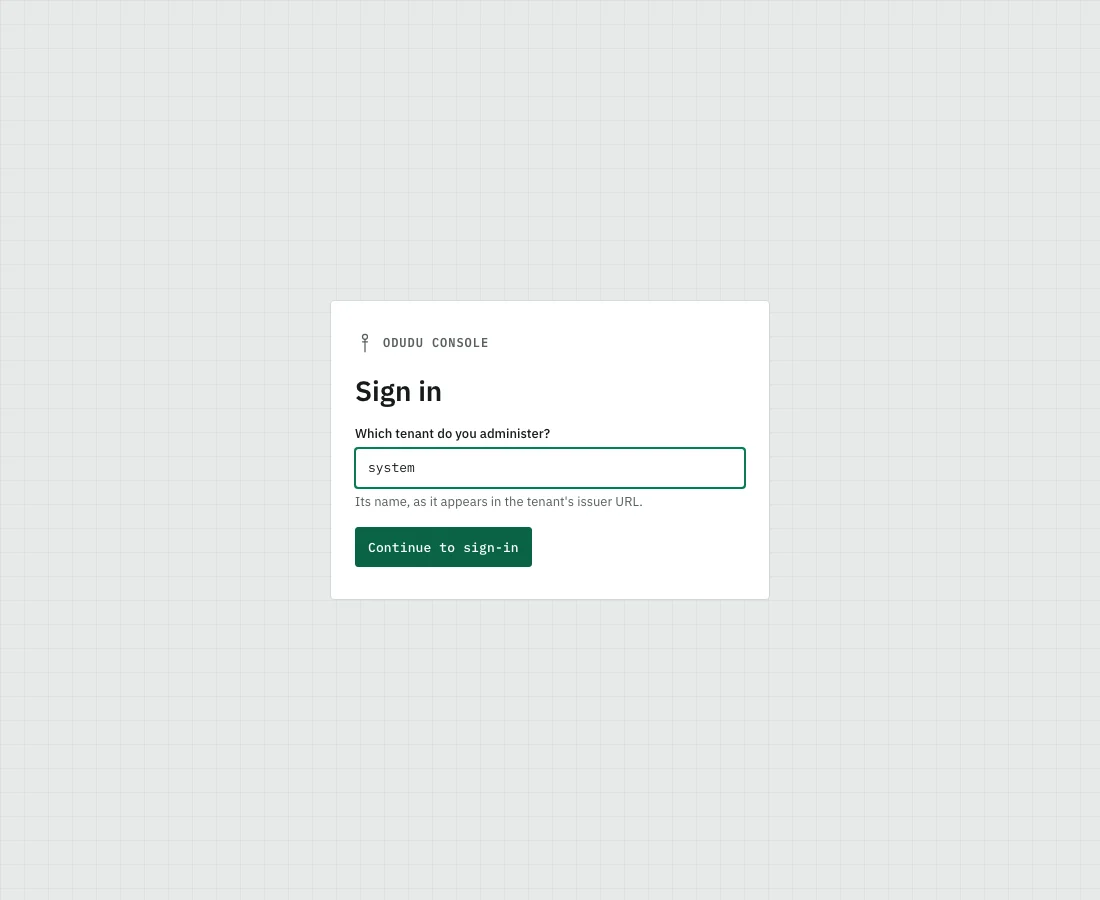
Open http://localhost:3000/console/ in your browser. The console first asks Which tenant do you administer?. Type system, the tenant your first administrator belongs to, and choose Continue to sign-in.
2. Sign in
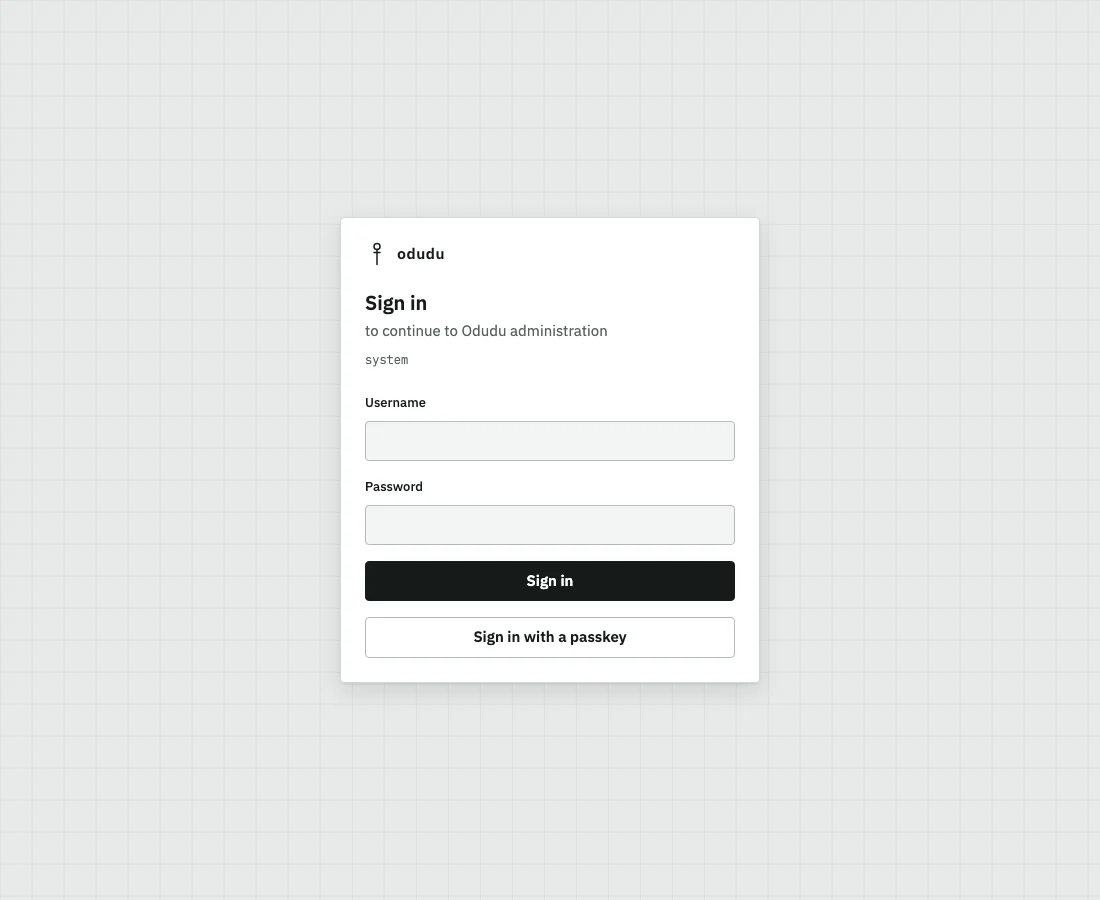
You land on Odudu's own sign-in page, the one every person of that tenant meets. Enter the administrator's email as the Username and the Password you were given.
The console never sees your password. It asks Odudu to sign you in, keeps the tokens it gets back on the server, and gives your browser a session cookie.
3. See the tenants
You arrive on Tenants, the first area of the SYSTEM group of the menu. It lists every tenant of this installation. An administrator of the system tenant is the only one who sees it.
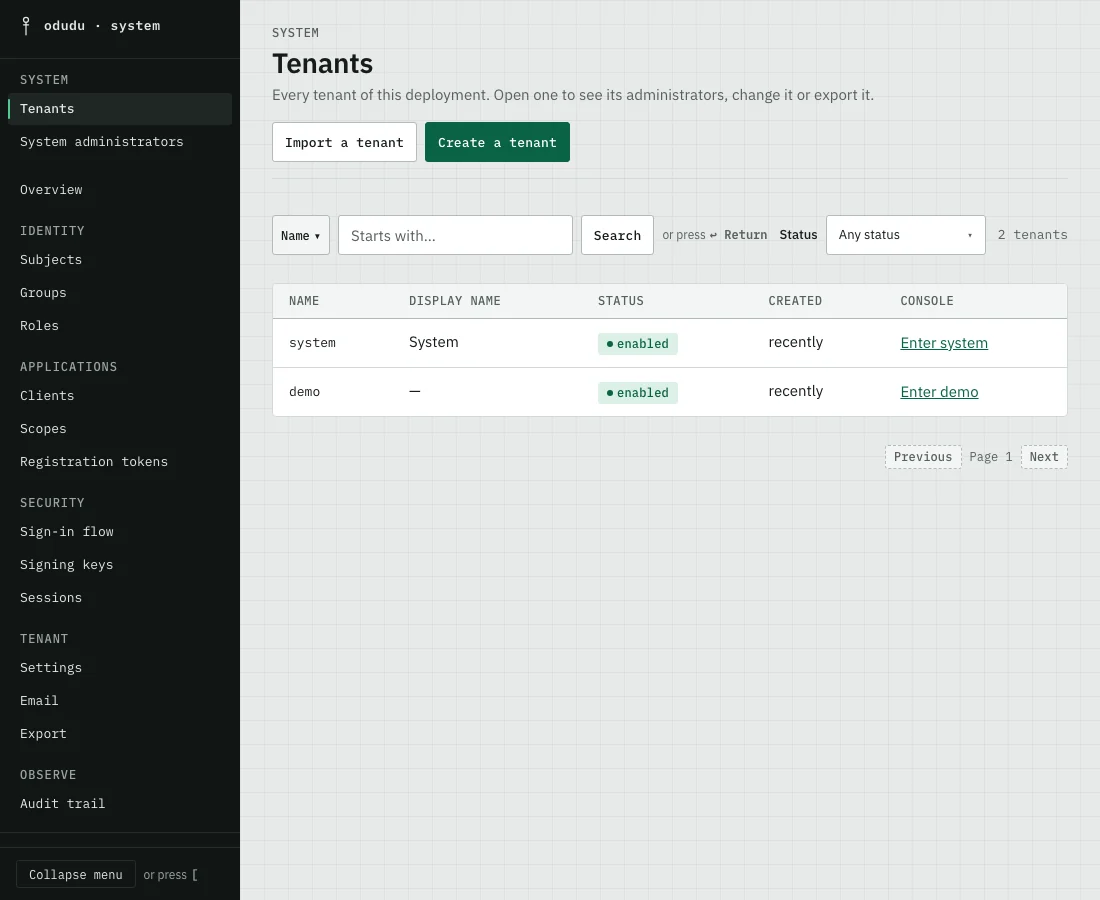
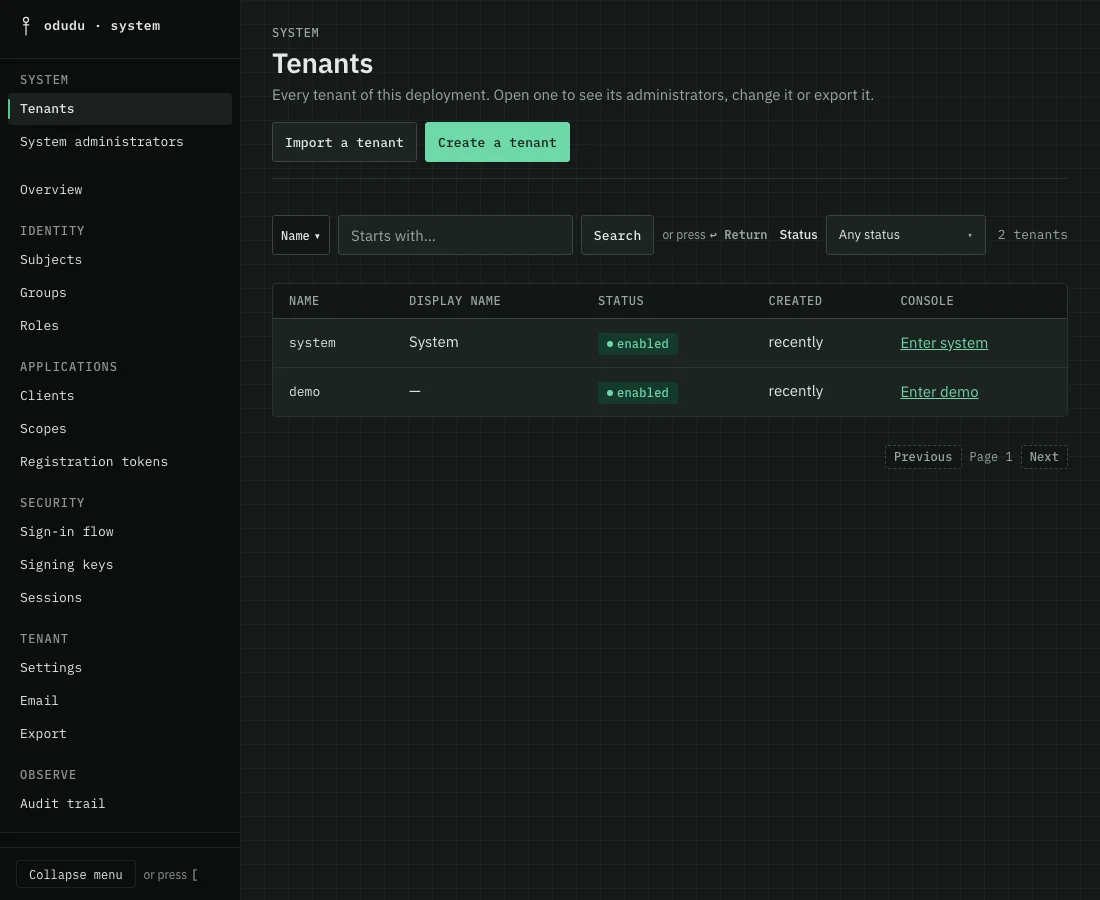
The Tenants page covers creating, exporting and deleting them. An administrator of any other tenant lands in that tenant's own Overview instead, with no list to choose from.
4. Enter a tenant
Choose Enter demo. The console opens the tenant's Overview and shows a banner that says you are acting there with system authority, with Back to system beside it when you want to leave.
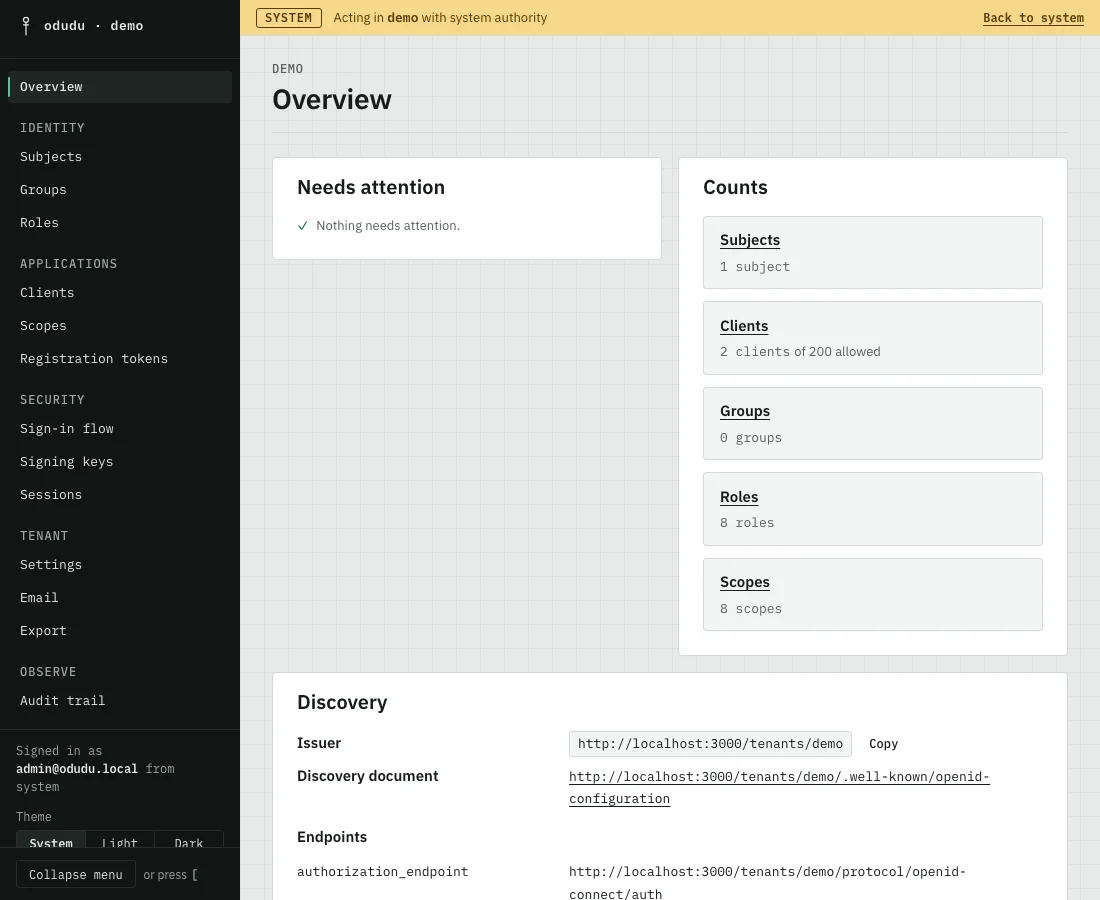
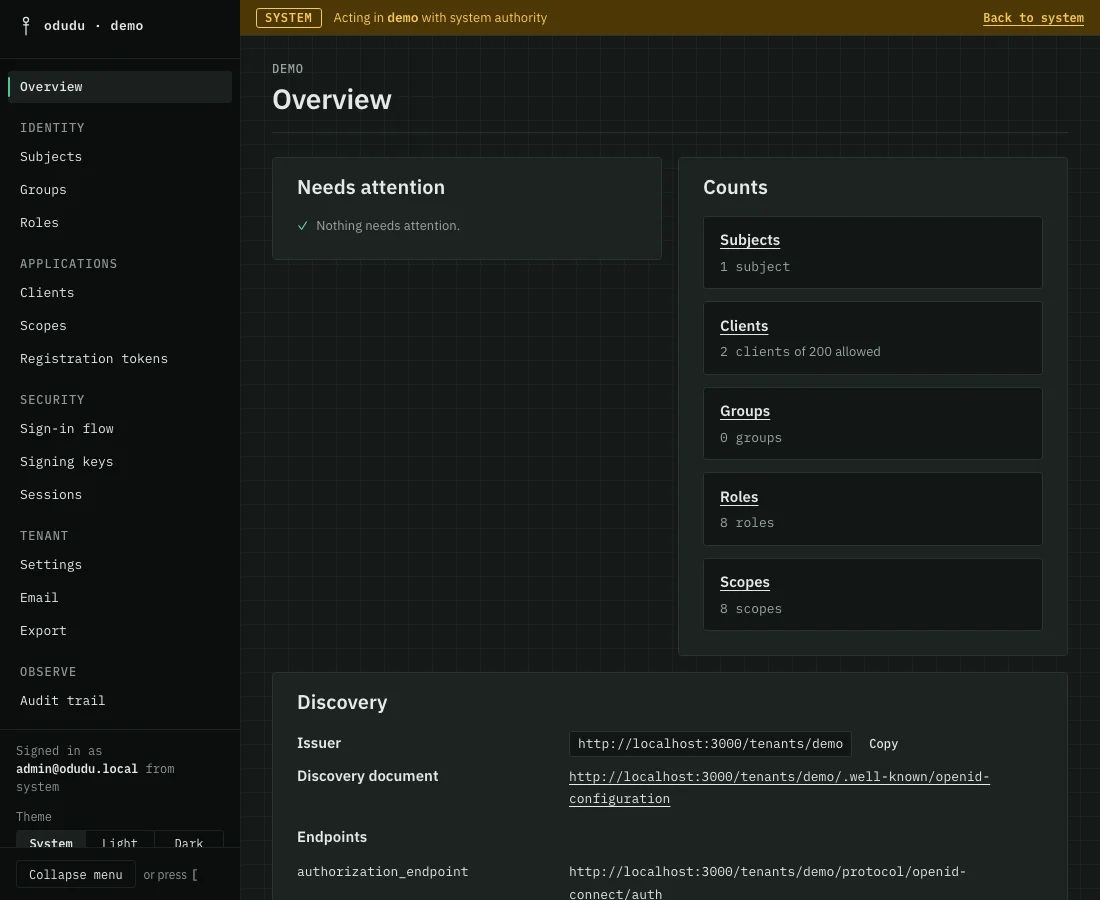
The Overview answers two questions, whether anything needs your attention and how big the tenant is. Each count is a link to the list it counts. Overview goes through it.
5. Read the menu
The menu on the left is the whole console. It groups the areas by what you are trying to do.
- IDENTITY holds the people: Subjects, Groups and Roles.
- APPLICATIONS holds what signs them in: Clients, Scopes and Registration tokens.
- SECURITY holds how they are checked: Sign-in flow, Signing keys and Sessions.
- TENANT holds the tenant itself: Settings, Email and Export, which is on the Tenants page.
- OBSERVE holds the record: Audit trail.
The menu lists only the areas you may read, so an administrator with fewer capabilities sees a shorter menu. An address to an area you may not read still opens, and says which capability it needs. Each page of this section names that capability.
6. Open one person
Choose Subjects, then ada. Her record has a tab for each part of an account, from Profile to Activity, and nothing on it changes until you press a button to save.
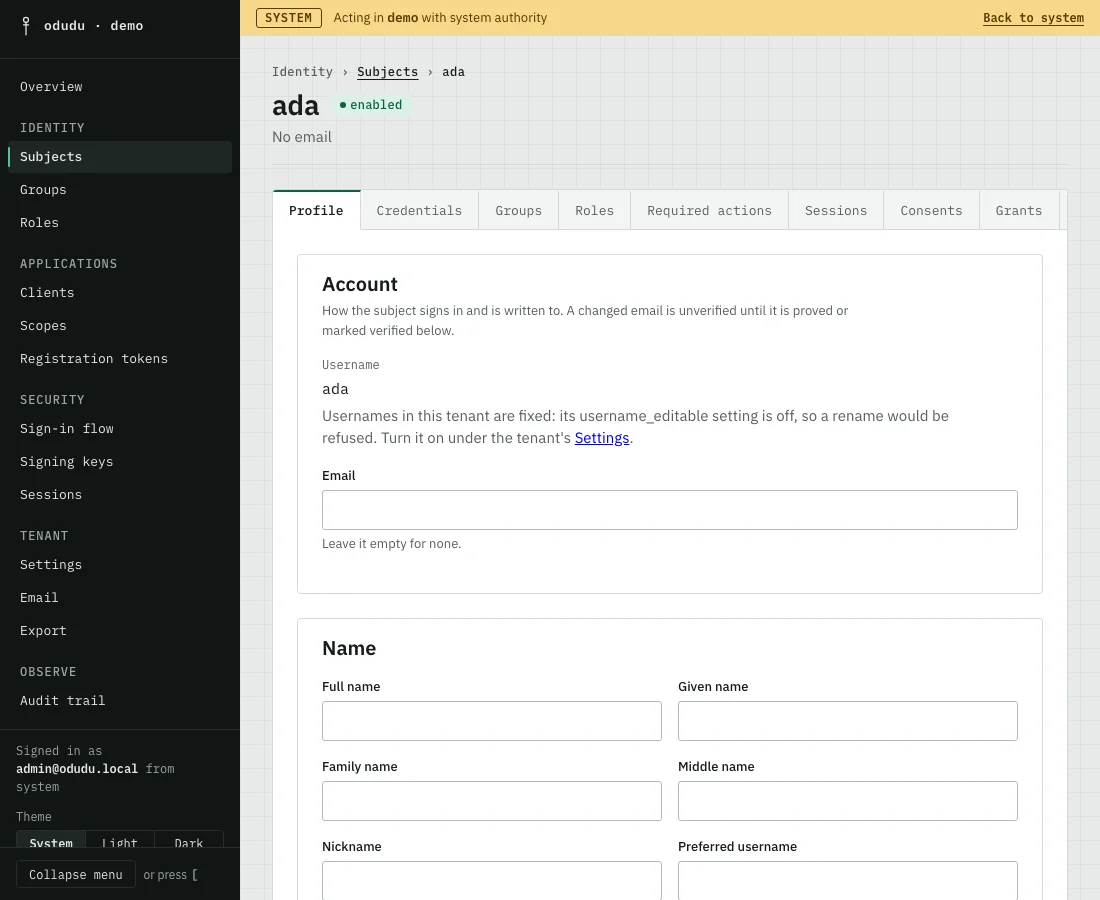
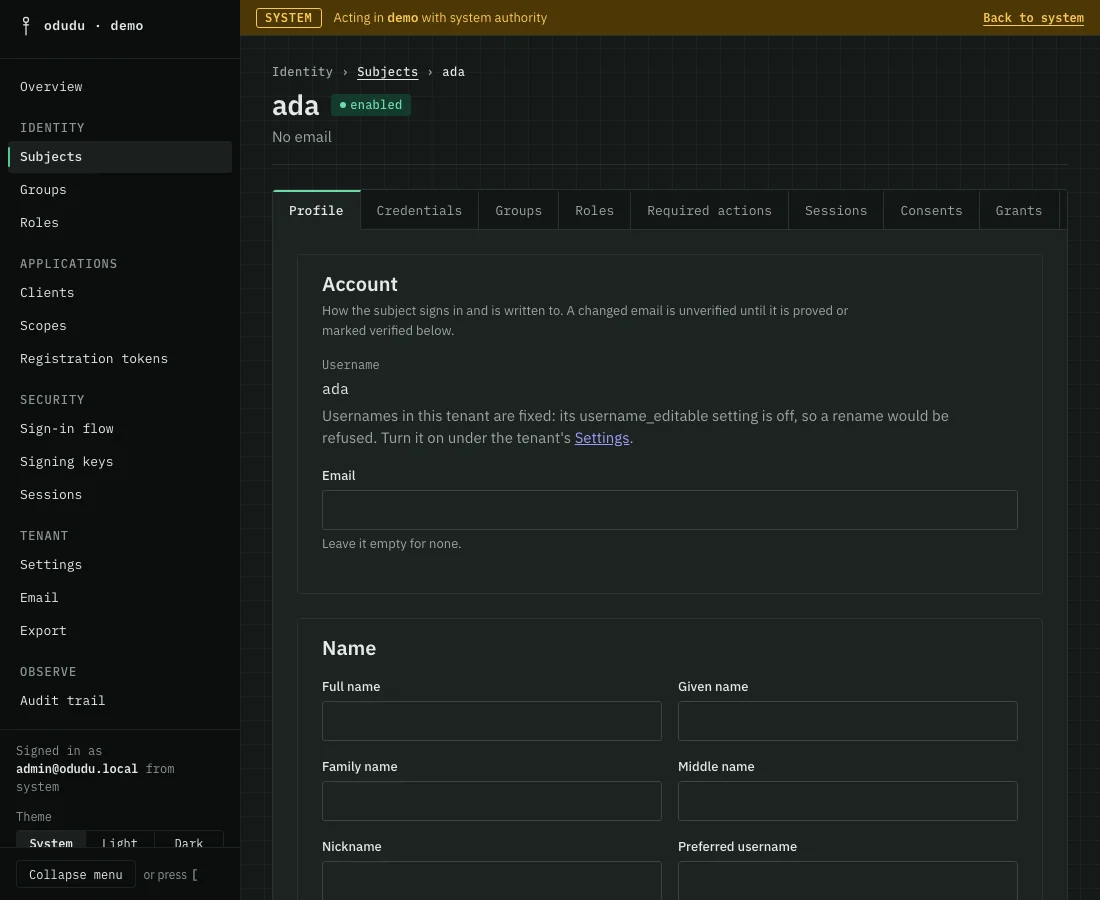
The Subjects page walks through each tab, including how to give someone a first password.
7. Find who made a change
Choose Audit trail. Every change made in the tenant is there, newest first, with who made it. The three rows below are the tenant, the client and the person from the quick start, each made by "a system administrator".
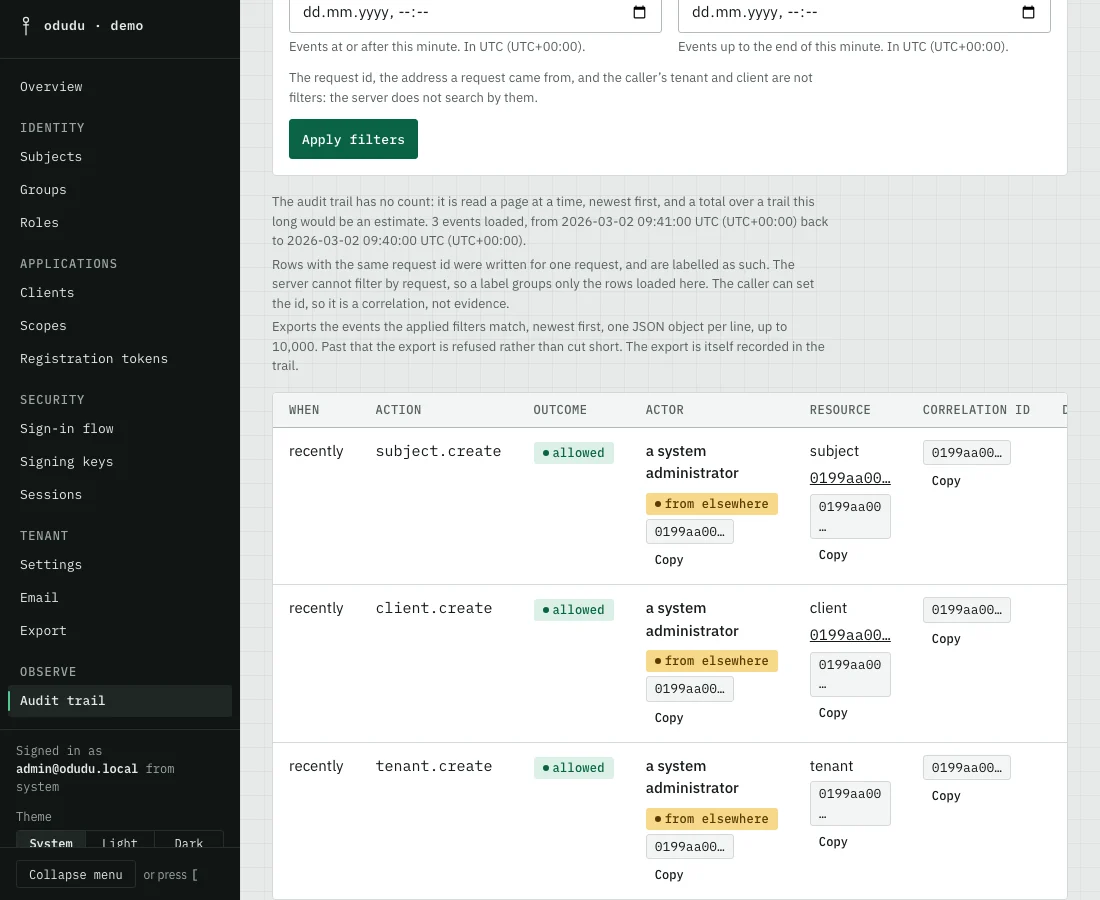
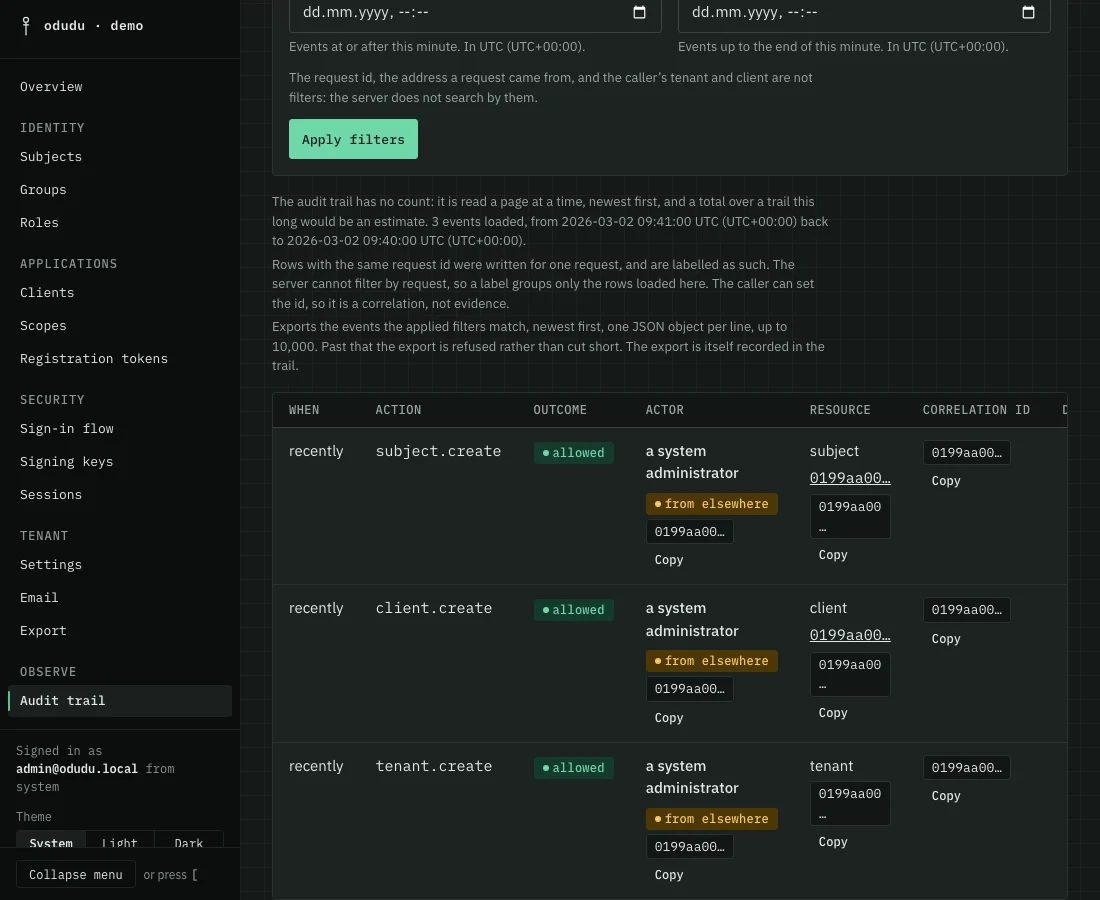
The Audit trail page shows how to filter it and export it.
8. Sign out
Choose Sign out at the bottom of the menu, beside the name you are signed in as. The console revokes the refresh token it held for you, clears its cookie and sends you to the tenant's own sign-out page.
If a page stops working
Now and then a page fails to draw. The console replaces that page with a panel that says Something went wrong, and leaves the menu where it is, so you can go on elsewhere. Changes you had saved are kept; changes you had not saved on the page that failed cannot be recovered. Try again draws the page once more. It keeps you where you are, so it does not ask anything. Back to overview takes you to the tenant's overview and Reload the console starts the console over; both leave the page, so they ask first if another form still open holds changes you have not saved.
Under the buttons is a short block with an Error ID, the page's address with its names left out, and the time. Choose Copy and send it to whoever runs your Odudu: the same ID is in the browser's developer console beside the full error, which is how they find it. The panel never shows what the error said, and the block holds nothing about you.
If the failure is in the menu itself, you get the same panel alone on the page, with the same three buttons. If it is in the console as a whole, you get that panel with a single Reload the console button.
A failure that happens when you press a button, rather than while a page draws, shows no panel. The button simply does nothing and the page stays as it was; the browser's developer console holds the error. Reload if it keeps happening.
What the console leaves to the command line
The console covers what an administrator does day to day. Four operator commands have no button. odudu reap, odudu send-mail and odudu send-logouts are passes the server already runs on its own schedule, which a deployment may turn off and run itself, so the console shows what some of them produce and does not start them. odudu client-origins rebuild is run once, after an upgrade that adds client origins. The roadmap says why.
Do the same through the API
Every screen of this tour reads from the admin API, and each of the following pages ends with the area's own reference. To follow a whole sign-in and a change request by request, read An admin signs in and changes a user.