Quick start
You will start Odudu on your own machine, sign in to its console as the first administrator, and then sign a person in to an app. You need nothing installed except Docker and curl.
This stack is for trying Odudu out on your own machine, and Odudu itself runs happily on a server other people can reach. The quick start is not that deployment: it serves plain http on loopback only, and its database password is fixed and public. A server that others can reach needs a real database password, TLS and your own encryption key, which the Operating section covers.
Before you start
You need Docker with Compose v2: Docker Desktop on macOS or Windows, or Docker Engine with the Compose plugin on Linux. Check with docker compose version. The command has a space in it; the older docker-compose is not Compose v2.
You also need curl, which macOS, Linux and current Windows ship. Postgres and the one-time setup step come in the stack. The stack publishes these ports on loopback only:
| Port | What | Change it with |
|---|---|---|
| 3000 | The server and the console | ODUDU_PORT |
| 8025 | The mail catcher's inbox, only with the mail profile | ODUDU_MAIL_PORT |
1. Start Odudu
One command downloads the file that describes the stack and starts it. The first start pulls the images, so it is slower than the starts after it.
curl -fsSLO https://github.com/wizzywit/odudu/releases/download/v0.1.0-rc.3/compose.yaml && docker compose up -d
This is a release candidate; once 0.1.0 is out, the command uses latest.
The file starts three things: Postgres, a one-time setup step that creates the database roles and the first administrator, and the server.
If port 3000 is taken
Compose will say the port is already allocated. Choose another one with ODUDU_PORT and start again. In bash and zsh:
ODUDU_PORT=3100 docker compose up -d
In PowerShell:
$env:ODUDU_PORT = '3100'; docker compose up -d
Use that port wherever the rest of this page says 3000. Pick it before the first start: the address is saved then, so to change the port later run docker compose down -v and start again, which erases what you made. Use localhost, not 127.0.0.1, in your app's settings: the issuer always names localhost.
2. Copy the first password
The setup step prints the console address, the administrator's email and a generated password, once.
docker compose logs setup
You will see something like this, each line led by the container name that docker compose logs adds. Your password is different.
Odudu is ready.

 console:  http://localhost:3000/console/
 email:    admin@odudu.local
 password: yjNimKOX…

The password is shown once and must be changed at first sign-in.
To remove it from the setup container log afterwards, run:

  docker compose rm -f setup
Want your own email? Set ODUDU_ADMIN_EMAIL before the first start, the same way as ODUDU_PORT above. Want to be asked for a password instead of being given one? Run docker compose run --rm setup from a terminal before you start the server.
Copy the password somewhere safe. The generated one stays readable in the setup container's log until the container is removed, so remove it now.
docker compose rm -f setup
3. Sign in to the console
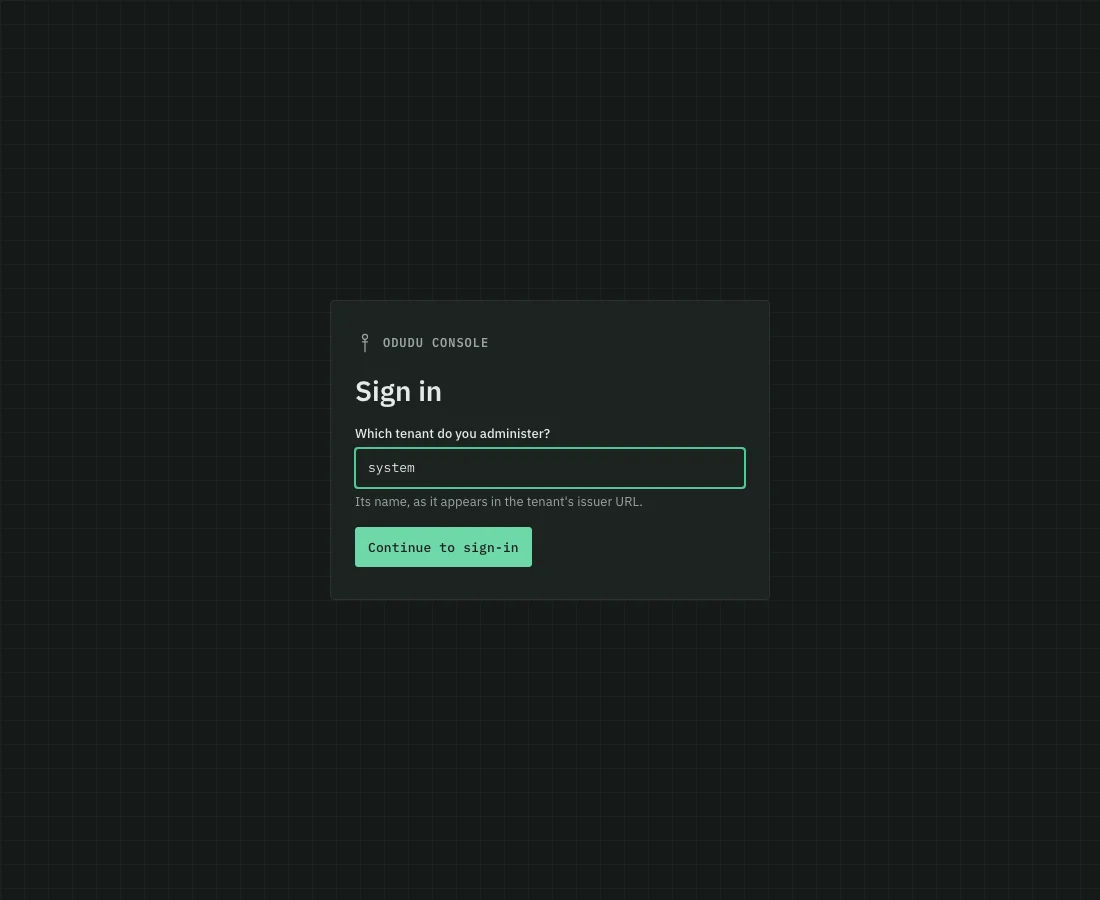
Open the console address from the banner, http://localhost:3000/console/. It first asks which tenant you administer. Type system, the tenant that holds the first administrator, and choose Continue to sign-in.
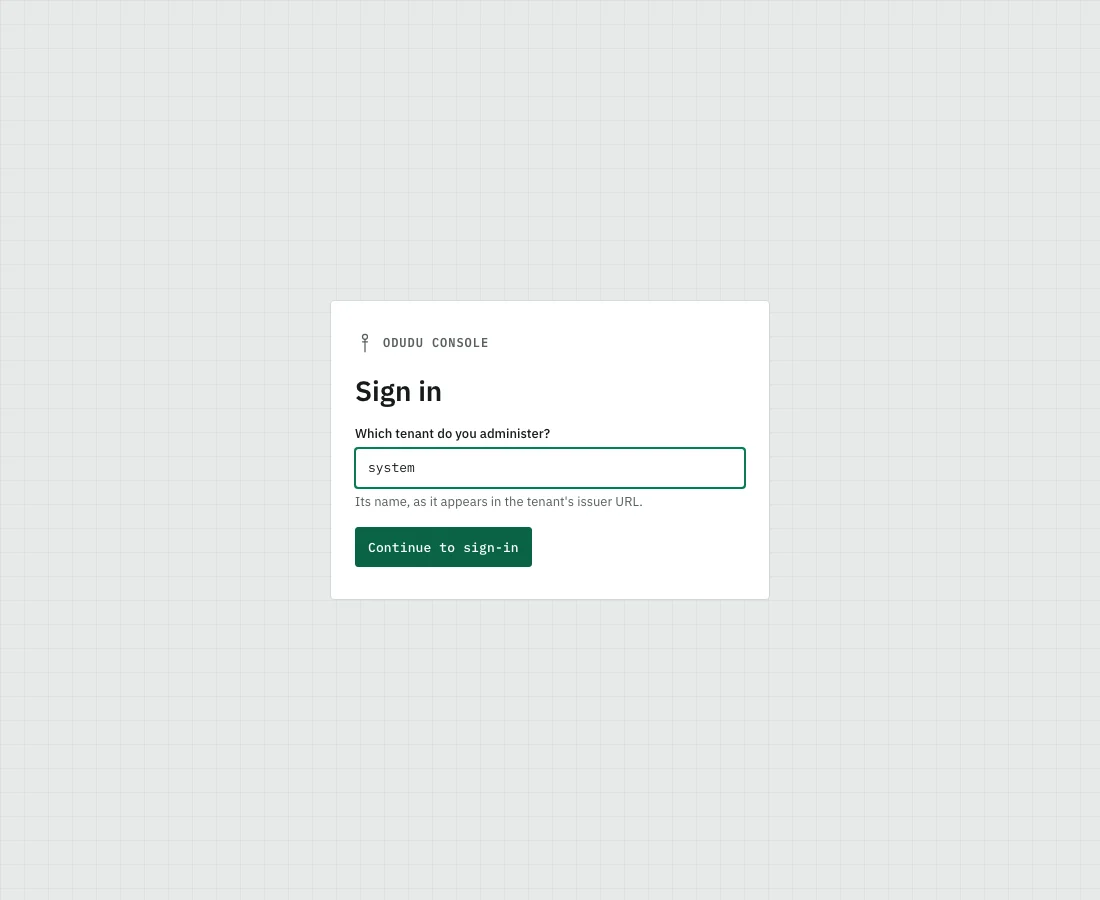
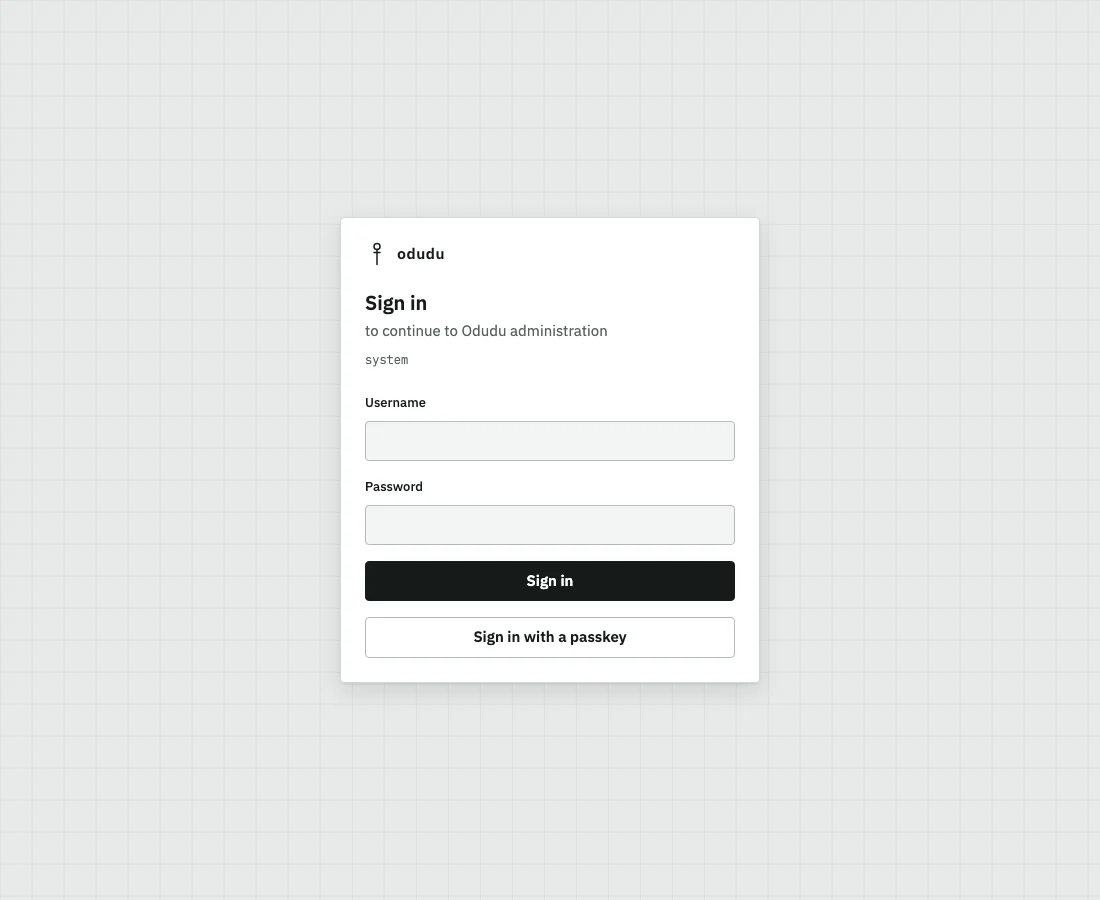
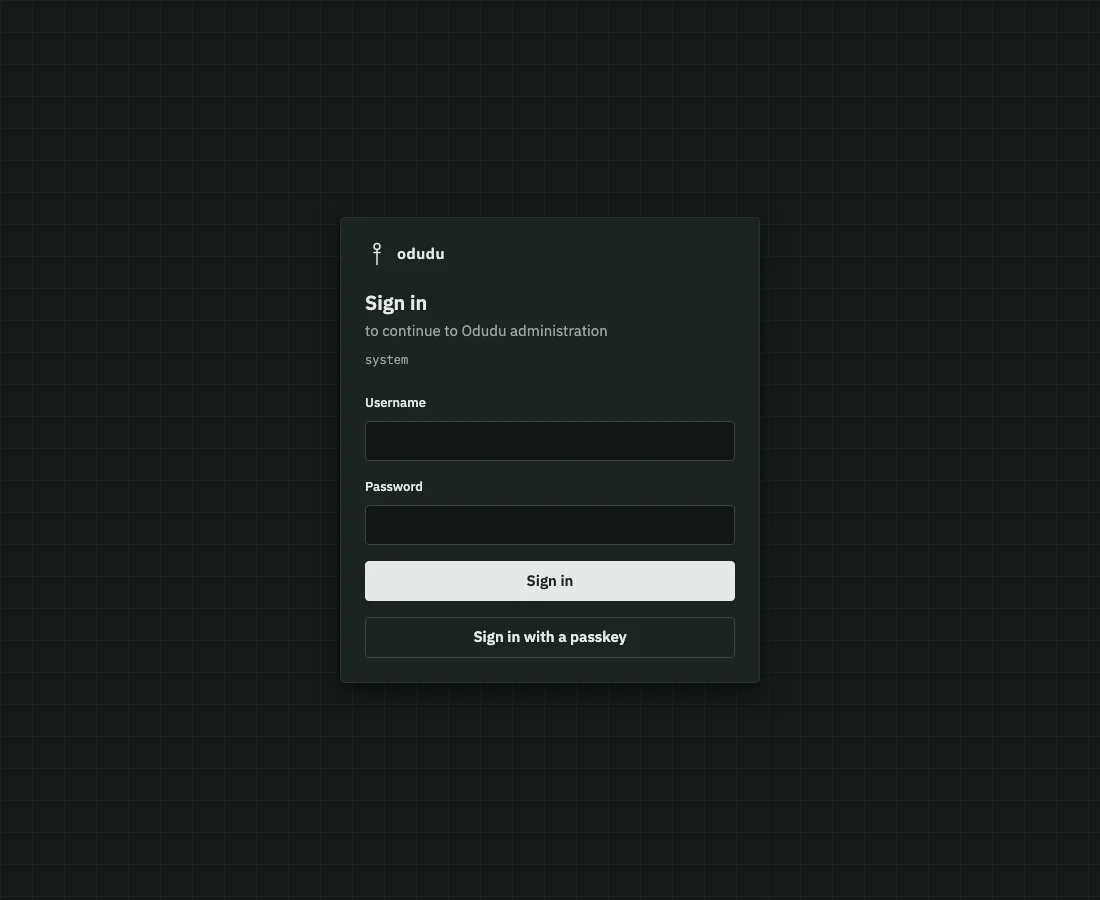
Odudu's own sign-in page follows. Type the email from the banner in Username, and the password you copied in Password. Odudu asks you to choose a new password before it lets you in. Do that, and you are in the admin console.
You have a running identity provider. The rest of this page makes it do its job.
4. Set up an app
An app asks Odudu to sign a person in. Odudu keeps people in a tenant, so you make a tenant, register your app as a client of it, and make a person. Each step has two routes to the same result: the console, or the command line. Pick one; your choice sticks to every step on this page.
Make a tenant
The tenant is the home of its own people, apps and keys. Call it demo.
- Console
- Command line
- In the rail, under SYSTEM, choose Tenants.
- Choose Create a tenant.
- Type
demoin Name. The issuer under it becomeshttp://localhost:3000/tenants/demo. - Choose Create tenant. The tenant exists now. The page goes on to ask for its first administrator, which this page does not need, so leave it there.
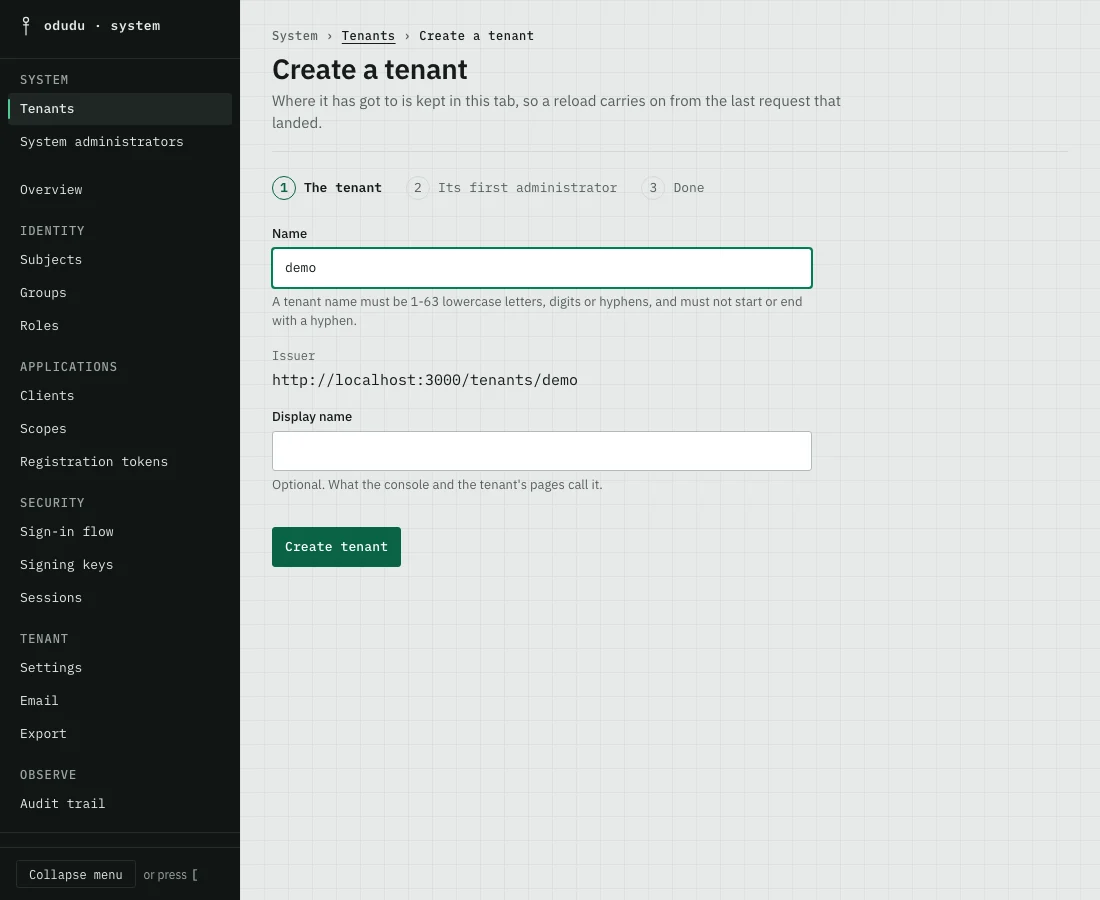
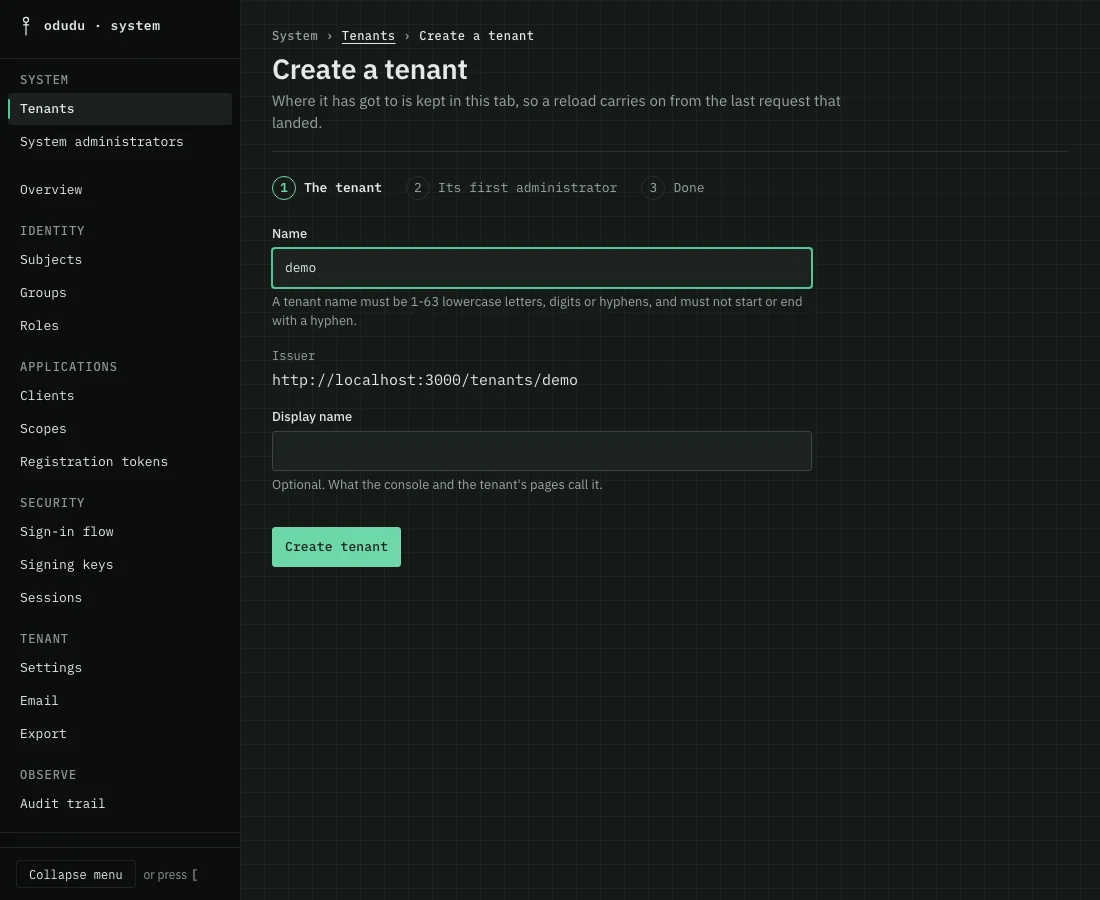
Every command on this page talks to the server at one address. Set it once; if you moved the port, set it to that address instead.
export ODUDU_BASE="${ODUDU_BASE:-http://localhost:3000}"
docker compose exec odudu odudu seed tenant --name demo
Register the app
Call it my-app. It is a single-page app, which cannot keep a secret, so it is a public client. The redirect address is where Odudu sends the person after they sign in.
- Console
- Command line
- Open the
demotenant: in Tenants, choose Enter demo. Then, in the rail under APPLICATIONS, choose Clients. - Choose Create a client.
- Type
my-appin Client ID. - In Kind, choose Public application.
- Type
http://localhost:8080/callbackin the first row of Redirect URIs. - Choose Create client. A public client has no secret, so nothing is shown once.
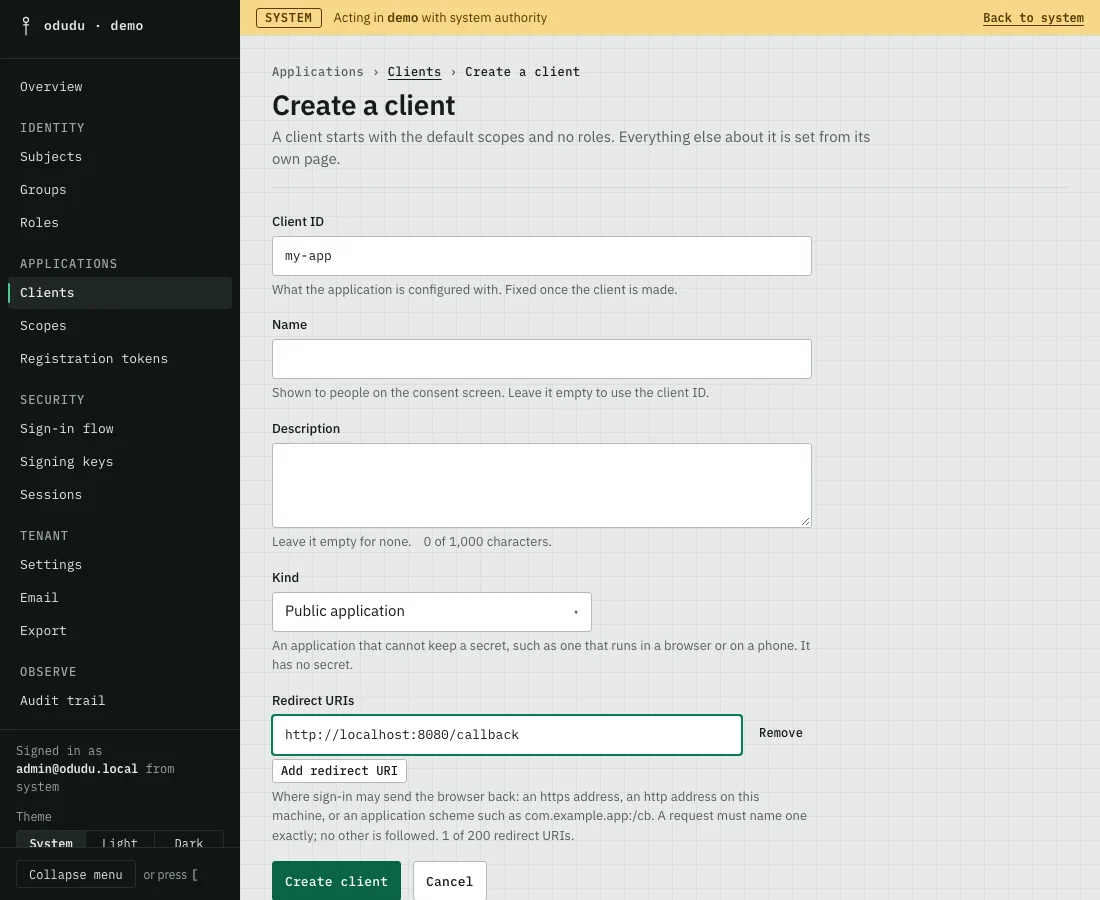
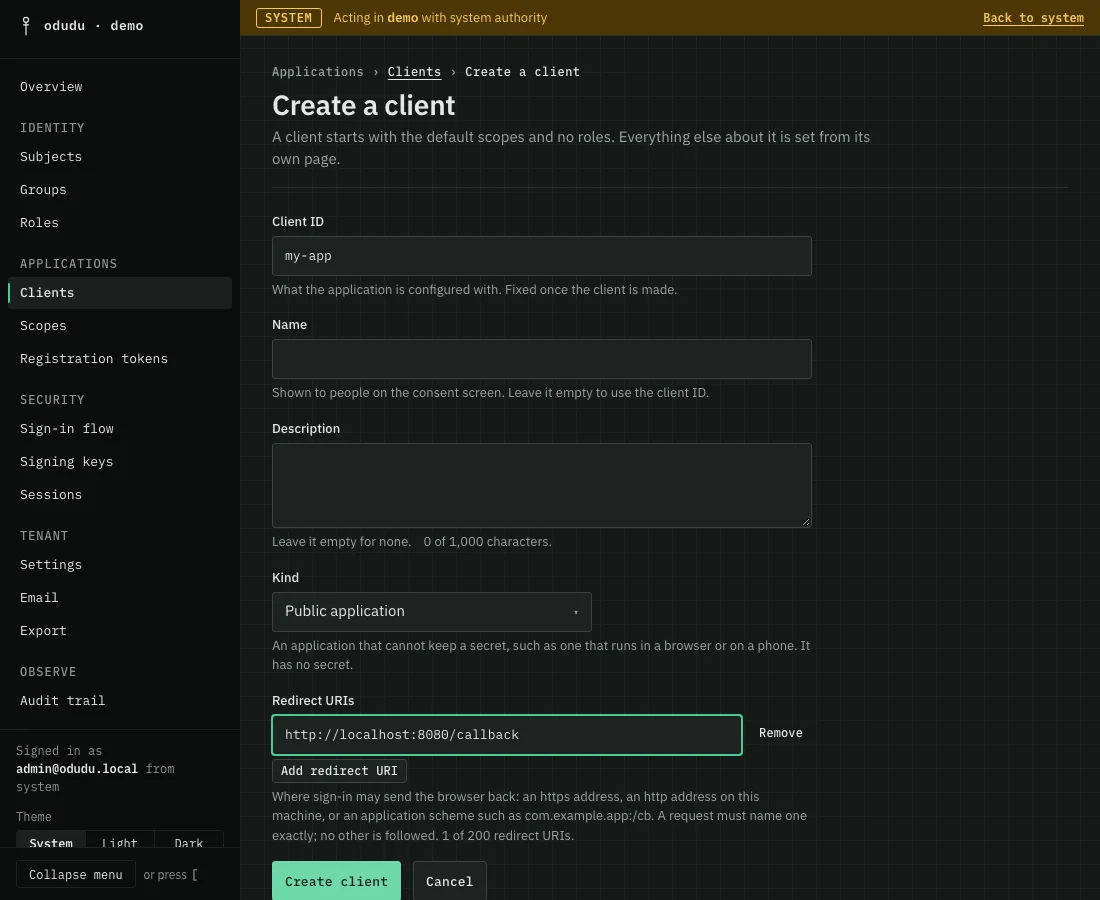
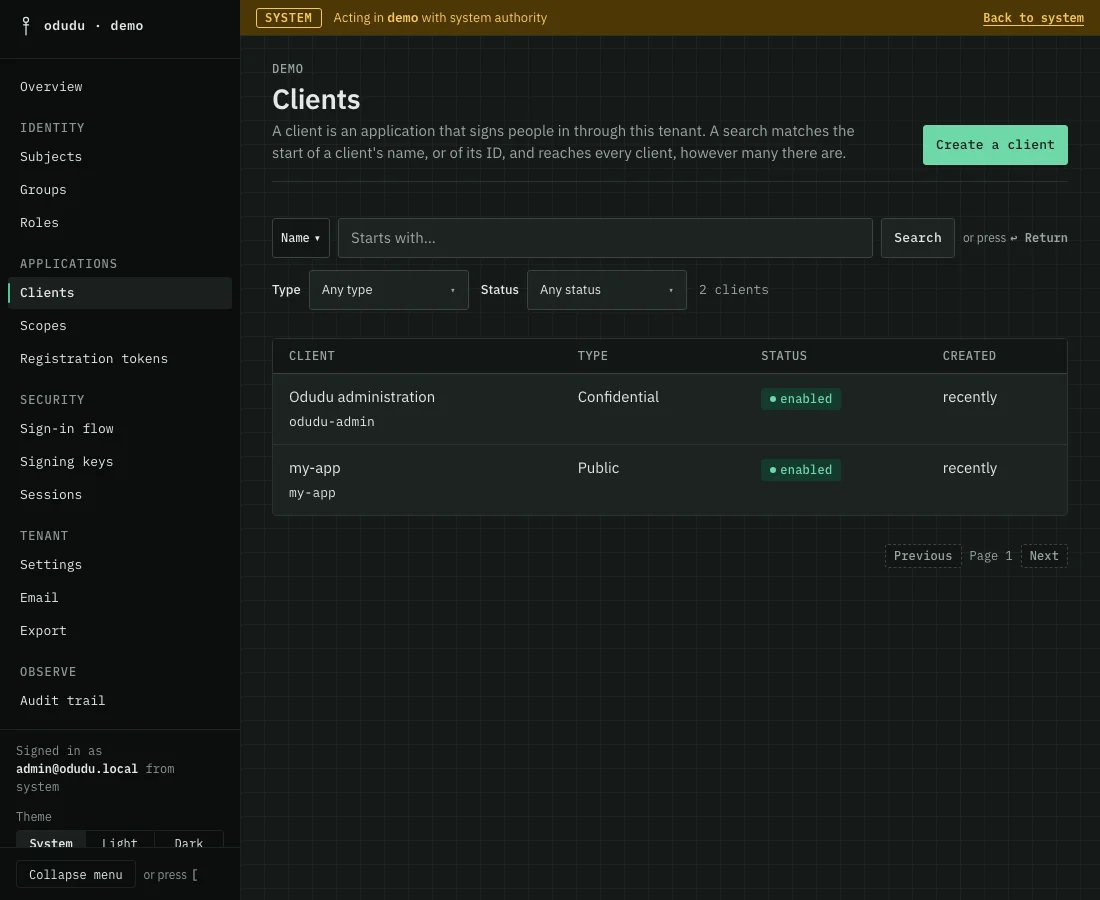
The tenant's client list now shows it.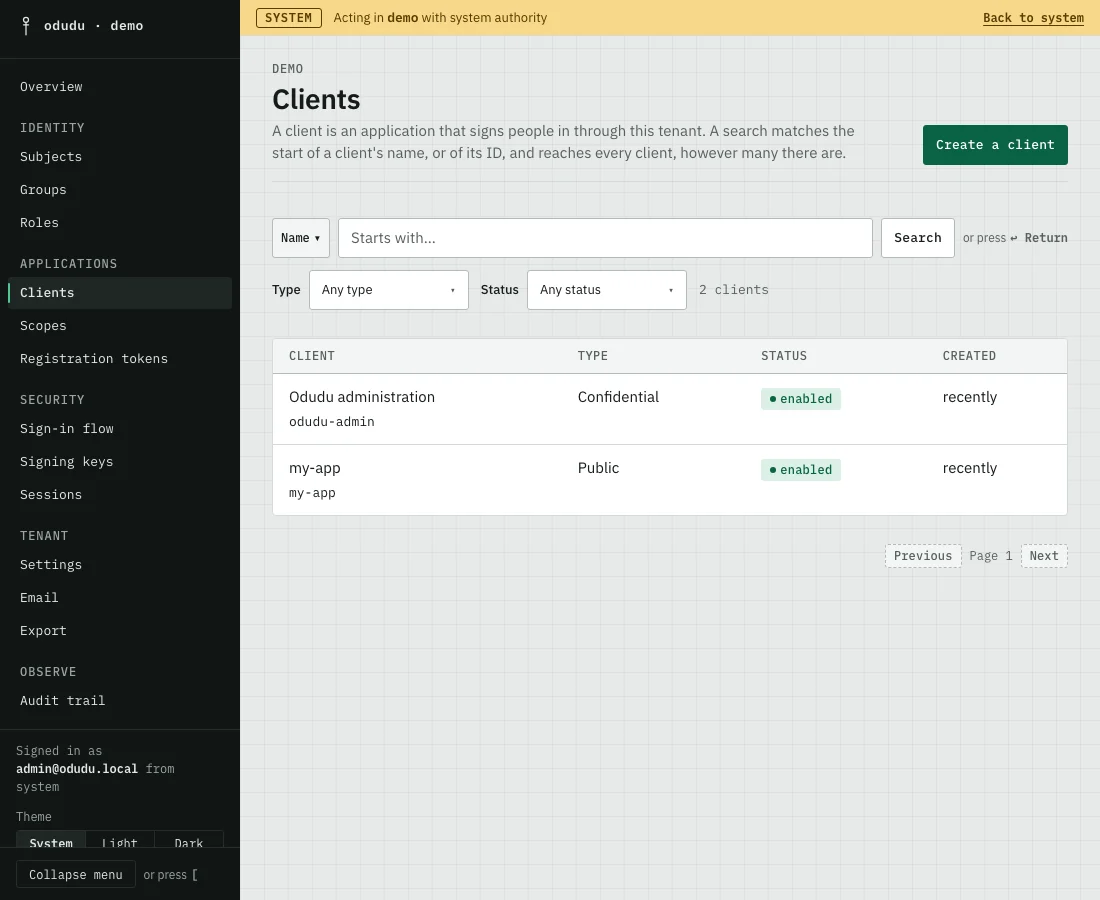
docker compose exec odudu odudu seed client --tenant demo --client-id my-app --public --redirect-uri http://localhost:8080/callback
Make a person
Call them ada.
- Console
- Command line
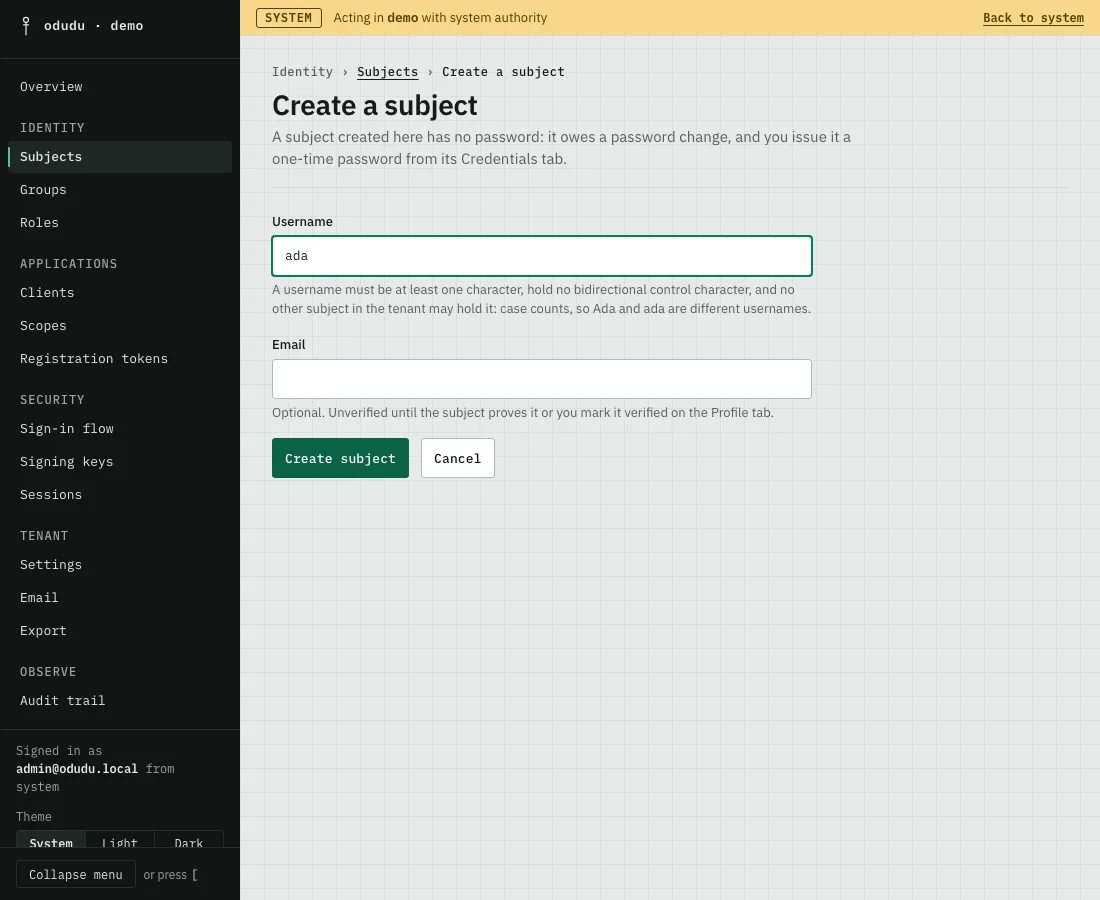
- In the rail under IDENTITY, choose Subjects.
- Choose Create a subject.
- Type
adain Username. - Choose Create subject.
- Open the Credentials tab and choose Issue a one-time password, then Issue password. The console shows the password once. Copy it: the person changes it at their first sign-in.
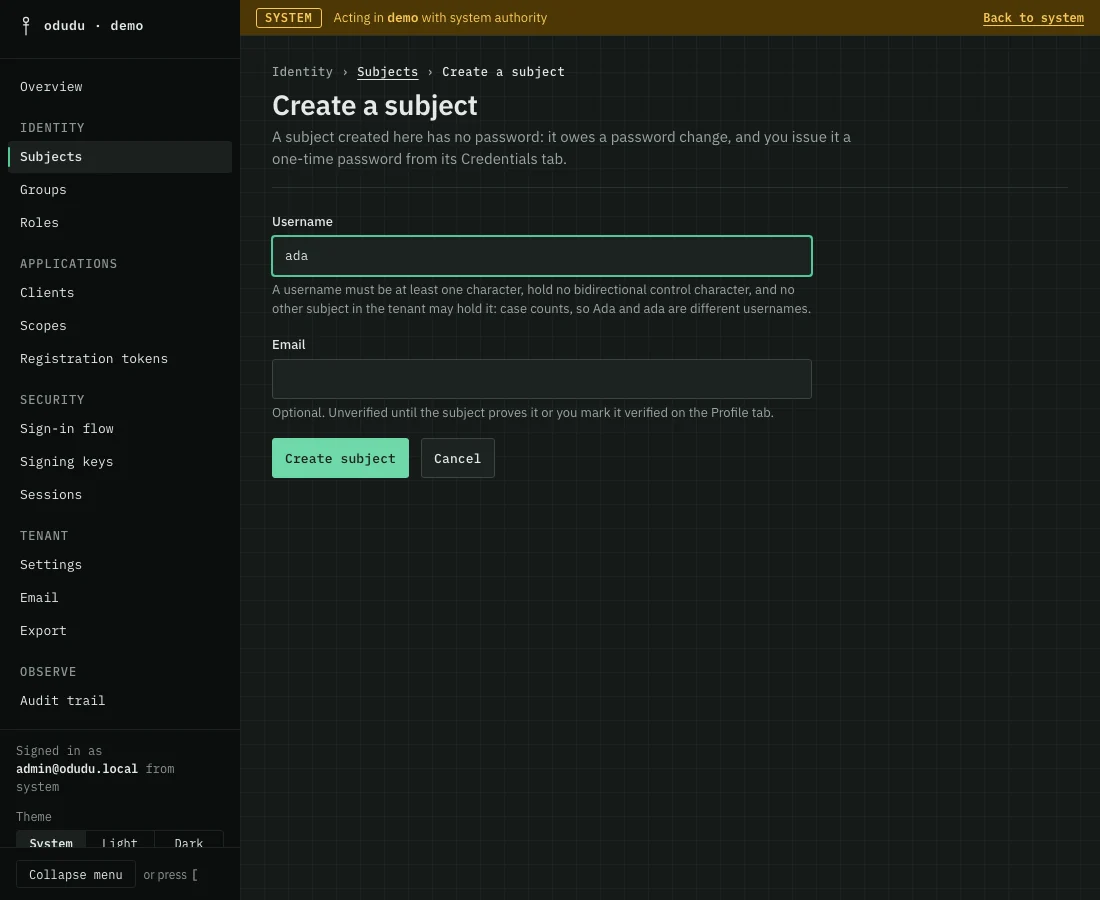
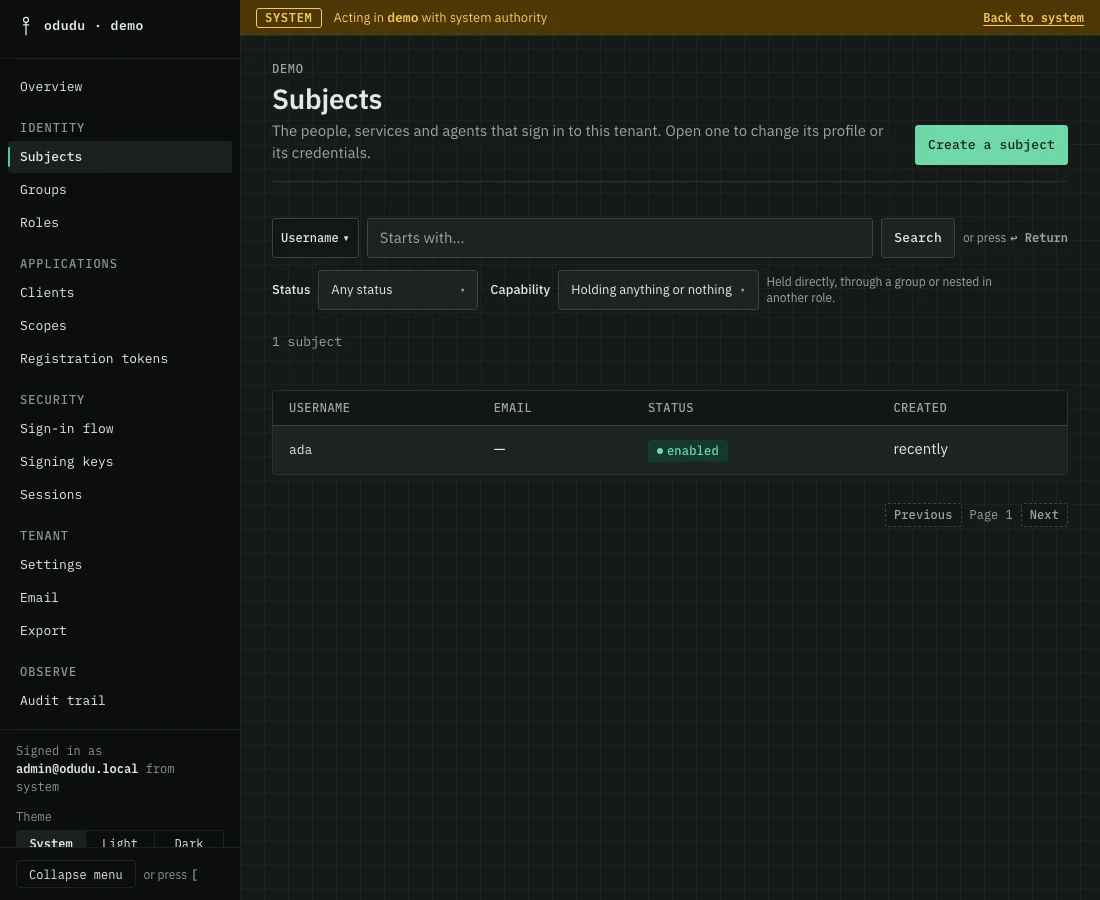
The subject list shows the new person.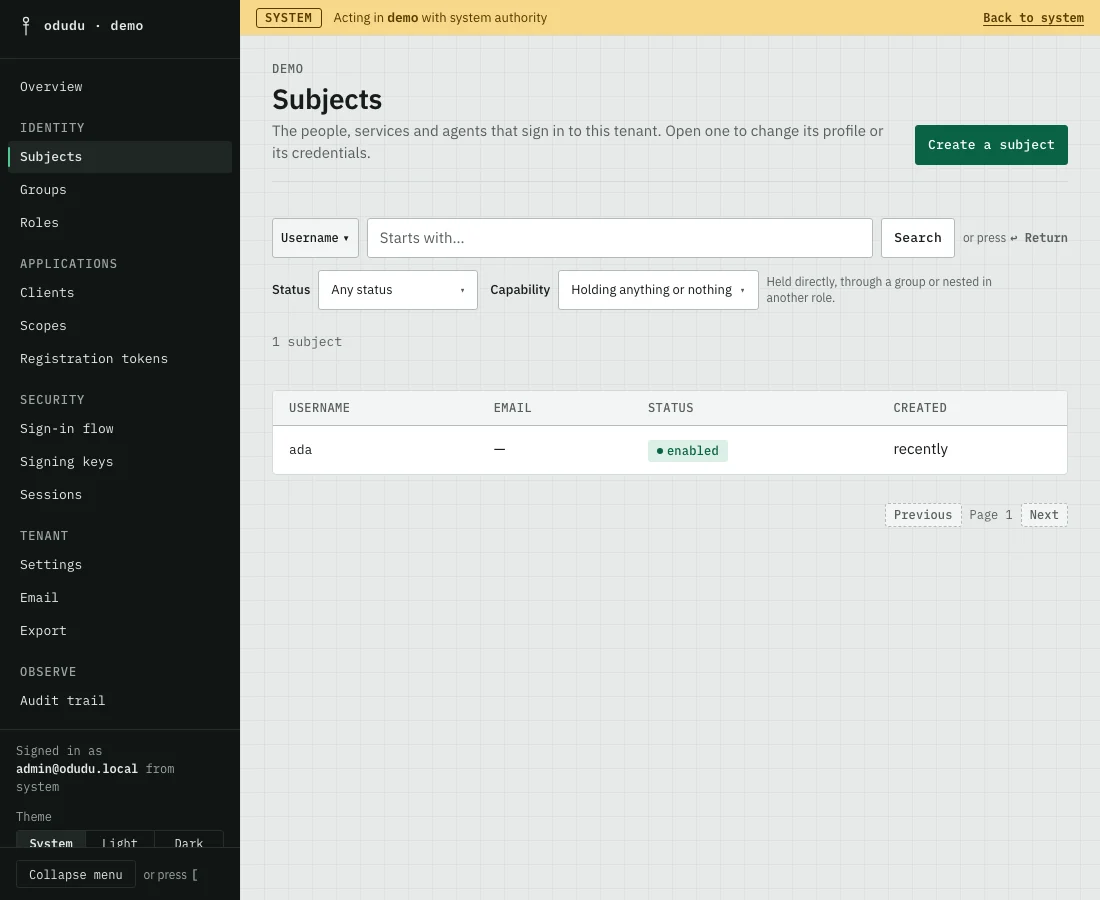
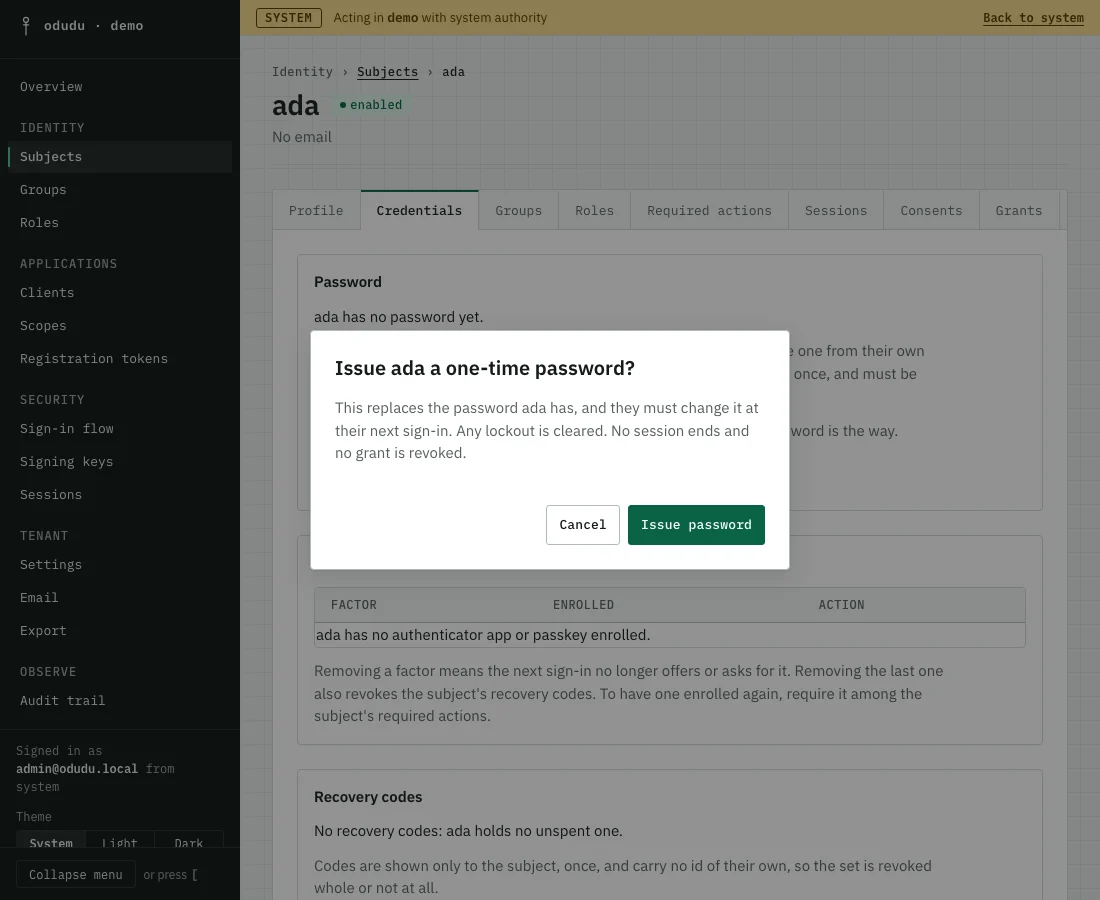
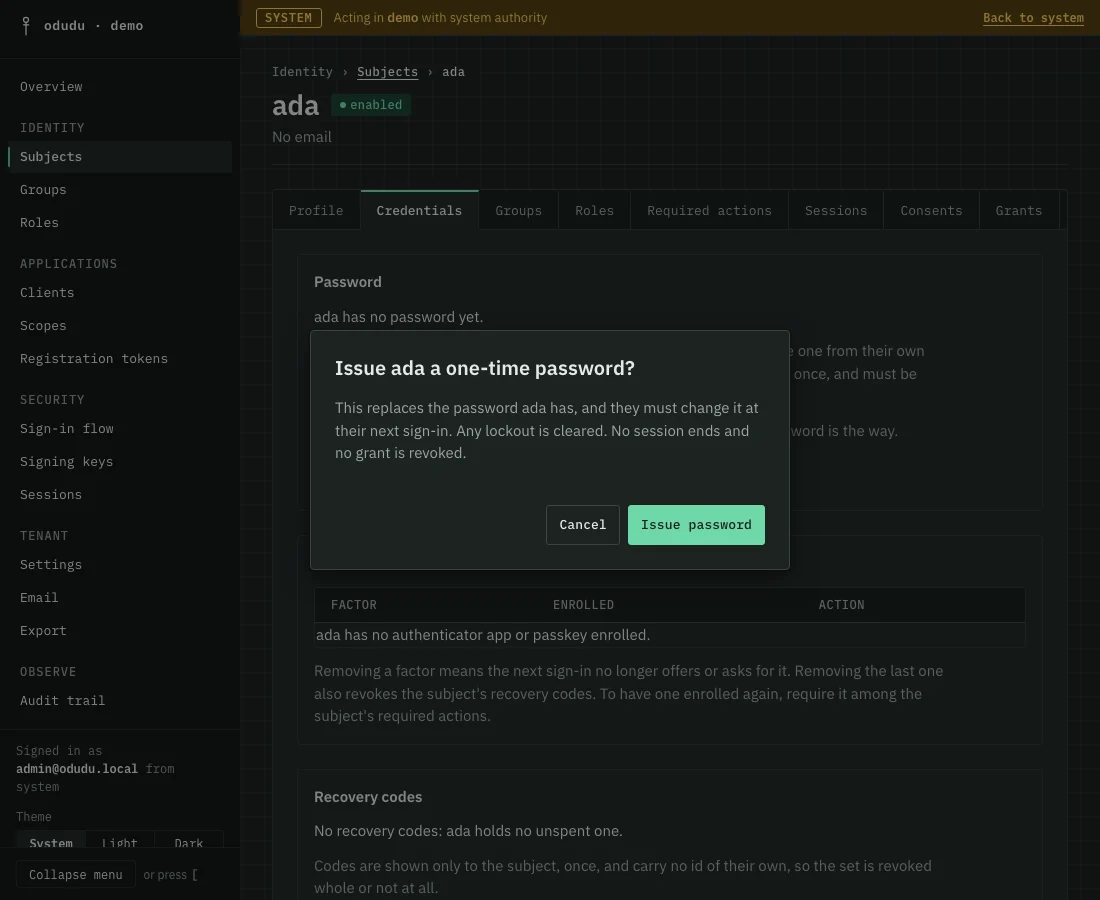
The console never lets you choose someone's password, so there is no field for one. The command-line route does, and the guides sign ada in with that route's password, so use the Command line tab here if you mean to follow them.
The guides sign ada in with the password shown here, so keep it for now and choose your own for real users.
docker compose exec odudu odudu seed user --tenant demo --username ada --password 'a long and unremarkable passphrase'
Sign in to the app
Now ask the tenant to sign ada in to my-app. This is the address your app sends the browser to. The code_challenge is part of PKCE, which every client uses, and the guides explain it.
- Console
- Command line
Open this address in your browser. If you moved the port, use it in place of 3000.
http://localhost:3000/tenants/demo/protocol/openid-connect/auth?response_type=code&client_id=my-app&redirect_uri=http%3A%2F%2Flocalhost%3A8080%2Fcallback&scope=openid&state=abc123&code_challenge=E9Melhoa2OwvFrEMTJguCHaoeK1t8URWbuGJSstw-cM&code_challenge_method=S256
SIGN_IN="$ODUDU_BASE/tenants/demo/protocol/openid-connect/auth?response_type=code&client_id=my-app&redirect_uri=http%3A%2F%2Flocalhost%3A8080%2Fcallback&scope=openid&state=abc123&code_challenge=E9Melhoa2OwvFrEMTJguCHaoeK1t8URWbuGJSstw-cM&code_challenge_method=S256" && echo "$SIGN_IN"
Open that address in your browser. To check without a browser, ask for the page:
curl -sS -o /dev/null -w '%{http_code}\n' "$SIGN_IN"
You see Odudu's sign-in page, named for my-app and the demo tenant. Sign in as ada; if you issued a one-time password, Odudu asks for a new one first. The browser then tries to open http://localhost:8080/callback?code=..., and because nothing listens there yet it shows a connection error. That is the end of the quick start: the address in the bar holds the one-time code your app would swap for tokens.
Where to next
This stack runs over plain http on your own machine, so its cookies are the local kind, without Secure. A real deployment sits behind TLS and sets ODUDU_TLS=true; Deploying shows how.
Pick the guide for what you are building. Each one signs a person in, or a service, all the way to tokens.
- A web app with a server, which keeps a secret.
- A single-page app, which cannot.
- An API that receives tokens and decides whether to trust them.
- A service calling a service, where no person signs in.
When you want to know what a tenant, a client and a token are, read Concepts.